All About Folders in Wave
Group recordings by project, client, or class, pin and sort your folders, and ask Wave about a whole folder at once.
Folders group recordings that belong together: one client, one course, one trip. A recording can sit in several folders at once, folders sync to every device you sign in on, and you can ask Wave AI about an entire folder instead of a single session.
How folders behave
- A session can be in more than one folder at a time.
- Deleting a folder never deletes the recordings inside it. They go back to being unfiled.
- Removing a session from a folder leaves it in your library. Deleting it from inside a folder sends the whole recording to Recently Deleted, and on iPhone and Android it's pulled out of its folders on the way, so restoring it later leaves it unfiled.
- Folders can't be put inside other folders.
- Pin a folder to keep it at the top of your folder list. Pins sync, so a folder pinned on your phone is pinned on the web and desktop too.
- Each folder remembers how its sessions are sorted: Newest first, Oldest first, or Title.
- Folder colors are chosen on iPhone and Android, and the Wave desktop app shows them too.
Creating a folder
Once a folder has recordings in it, its tile shows the count. Before you've made any folders, the screen reads No folders yet. Your folders also appear as a strip of chips at the top of Home, pinned ones first; press and hold a chip to Pin or Unpin it.
Filing recordings
Three ways, all equivalent:
- Swipe a row in any list and tap Add to Folder.
- Long-press a row and choose Add to Folder.
- Open the recording and tap Folder in the row of action buttons, or tap ⋯ and choose Move to folder.
Each opens Select a folder. Tap a folder to file the recording, search with Search folders, or tap Create Folder to make a new folder and file it in one go.
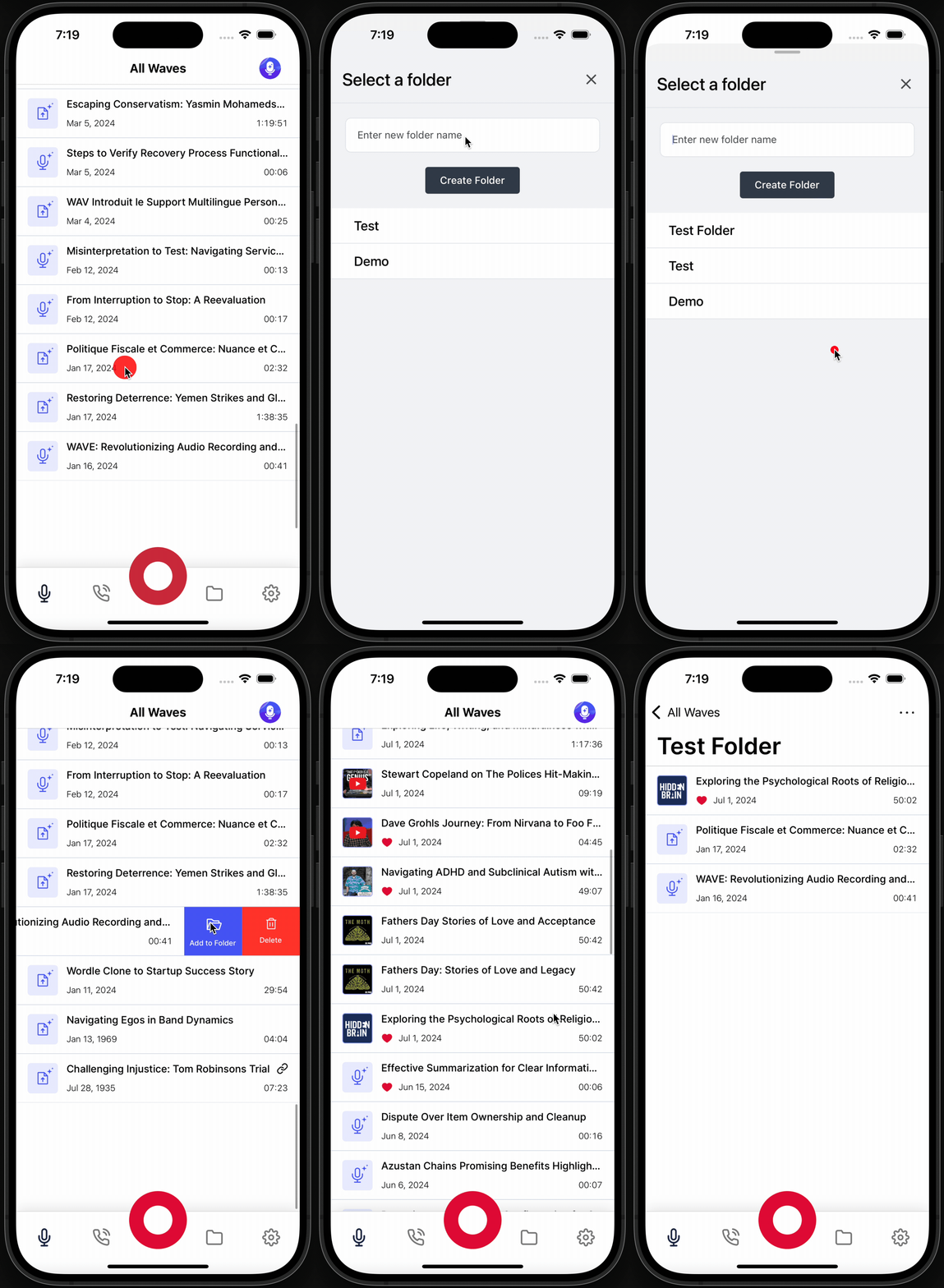
To take a recording out, open the folder, then swipe the row and tap Remove, or long-press it and choose Remove from Folder.
To file several at once, use bulk actions.
Pinning, renaming, and deleting folders
Open a folder and tap ⋯ at the top. The menu has Sort by, Pin (or Unpin), Edit Folder, and Delete Folder. Edit Folder lets you change the Folder Name and Folder Color, switch Pinned on or off, or delete the folder. Deleting asks you to confirm: Are you sure you want to delete this folder? This action cannot be undone.
Finding what isn't filed
Once at least one recording is in a folder, Wave helps you find the rest:
- iPhone & Android: choose Unfiled in the filter dropdown (it shows the count), or tap the Unfiled chip in the folder strip on Home. In that view, an Organize card at the top walks you through unfiled recordings one at a time so you can file each one. When everything is filed, the list reads Every Wave is in a folder.
- Desktop: open the filter menu above the session list (it reads All until you pick something else) and choose Unsorted, which shows the count.
Asking Wave about a whole folder
Wave can answer questions across every recording in a folder at once, which is useful for "what did we decide across these five calls?". It reads the transcripts and summaries of every session in the folder before answering.
Open the folder and tap the chat bubble at the top (Ask Wave about this folder). You can also open the Ask Wave tab, tap the title to open Ask about, and pick a folder under Folders.
See Wave Assistant for asking across all of your sessions instead.
Was this article helpful?
Still need help?