Action Items in Wave
Wave pulls the follow-ups out of every conversation and keeps them in one checklist you can work through.
Every Wave session can carry a checklist of action items — the concrete follow-ups that came out of the conversation. Wave extracts them from the recording automatically, and you can check them off, reword them, add your own, or delete the ones that don't matter.
Where action items live
There are two views: the checklist on a single session, and one list that pulls together open items from every session.
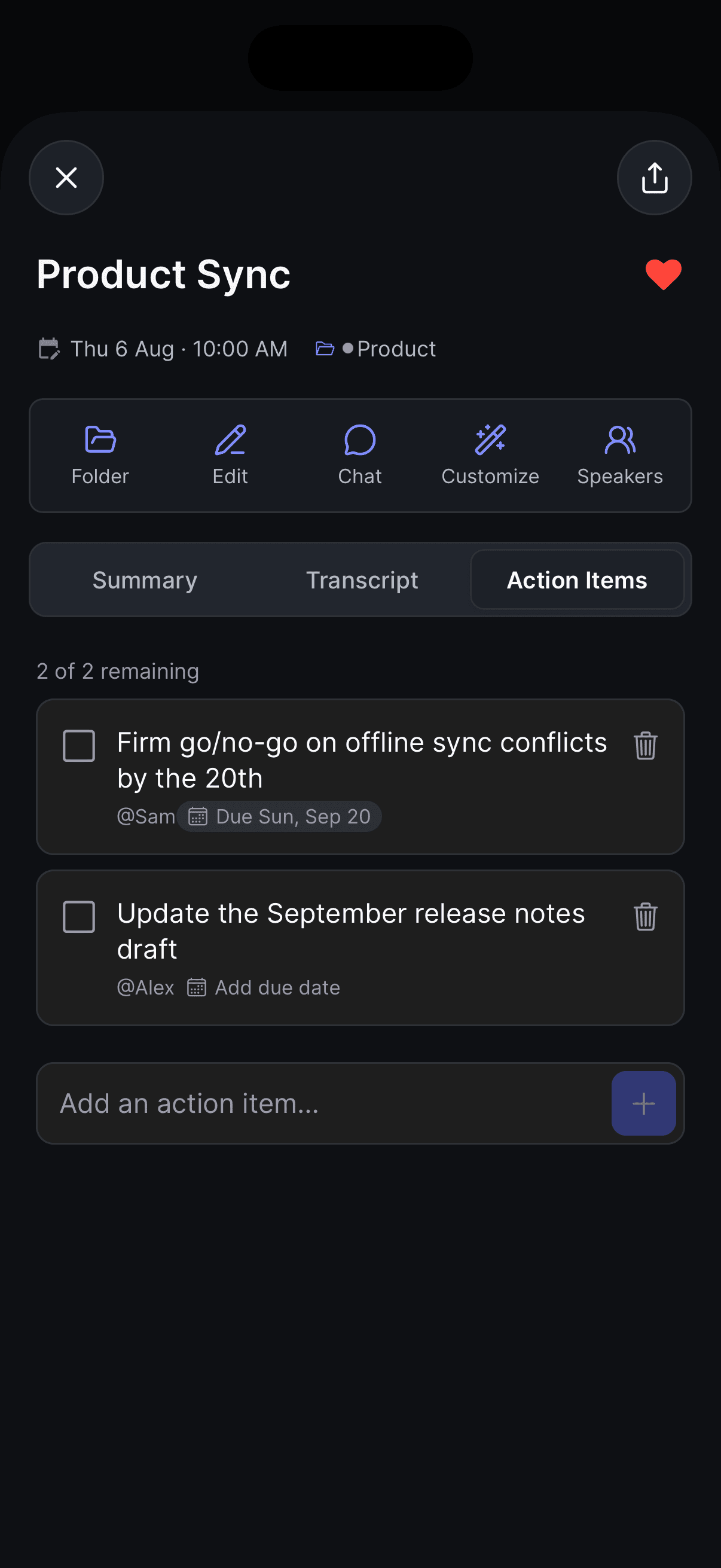
One session — open it and switch to the Action Items tab, next to Summary and Transcript.
Everything at once — tap the checkmark icon in the header of the Home tab. That opens Action Items, which shows a count like 12 open across 4 sessions.
Everything syncs across your devices. If you don't see the cross-session view yet, update to the latest version of the app.
How Wave creates them
When a recording finishes processing, Wave reads the transcript and pulls out the genuine follow-ups — things someone committed to, was asked to do, or that landed as a clear next step. General discussion stays in the summary.
Two rules decide whether Wave generates anything:
- The recording has to be longer than 5 minutes.
- The session has to be a conversation. Wave skips YouTube videos and podcasts — those are someone else's content, not a discussion you took part in. Files you import (a recording from another app, a voice memo, a call export) are treated like any other recording.
If a session genuinely has no follow-ups, the list stays empty. Wave won't invent tasks.
What's in an item
Beyond the task itself, Wave fills in what it can:
- Owner — when it's clear who's responsible, the name shows as @Name. Naming your speakers, or letting Voice ID do it, makes this much more accurate — and you can reassign any item yourself.
- Due date — a deadline mentioned out loud ("by Friday", "next Tuesday", "the 15th") is resolved to a real date and shown under the item. You can change or clear it, and give any item a date yourself.
- Timestamp — tap the time chip to jump the audio player to the moment the item came from.
Working the list
On a session's Action Items tab:
- Check one off — tap the checkbox. It gets crossed out, and the header count updates (3 of 5 remaining).
- Reword it — tap the text and type. Changes save on their own.
- Set a due date — tap the due date chip under the item, or Add due date if it doesn't have one yet (on web and desktop that appears when you hover over the item; on your phone it's always there). Pick a date and tap Done. To remove a date, open the picker and tap Clear date. This works on the dates Wave filled in, too.
- Reassign it — tap the @Name chip, or Assign on an item nobody owns (on web and desktop that appears when you hover over the item; on your phone it's always there). Pick a different person or Unassigned. The list offers everyone who spoke in the recording and, when the session is linked to a calendar meeting, everyone on the invite — so you can hand a task to someone who was invited but stayed quiet. Rename a speaker later and their items follow the new name.
- Add your own — type in Add an action item… and tap the + button on mobile, or Add on web and desktop.
- Delete one — tap the trash icon on the row.
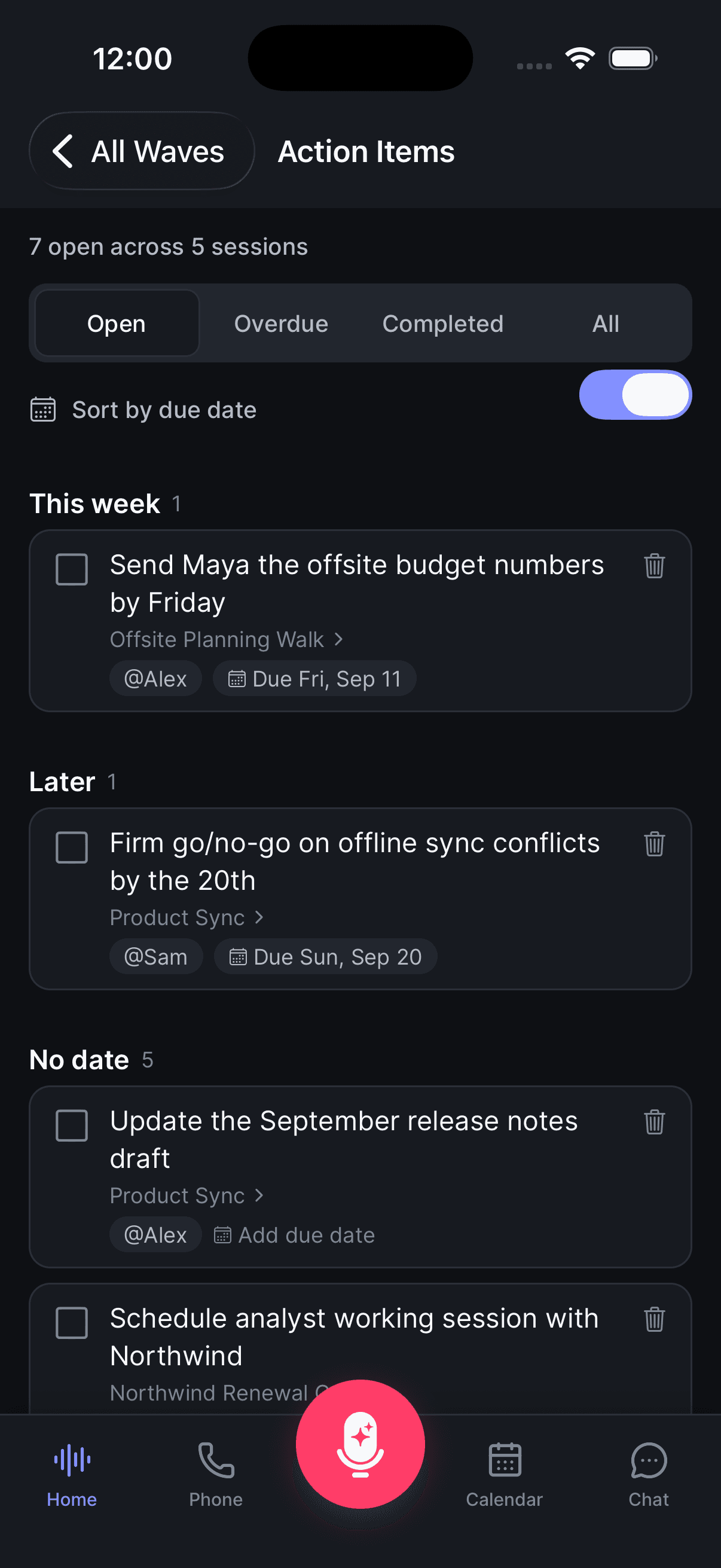
Due dates read relative to today — Due today, Due tomorrow, then the date (Due Fri, Sep 11). Once a date has passed, an open item shows Overdue · Tue, Sep 1 in red; checking it off clears the overdue styling. Android uses the system date picker, and an item that already has a date first asks whether you want to Change date or Clear date.
On the cross-session Action Items view:
- Switch between Open, Overdue, Completed, and All.
- Items are grouped by session, each with an open-count badge. Tap a session heading to open that recording.
- Turn on Sort by due date to regroup the whole list into Overdue, Today, This week, Later, and No date, soonest first. Each item then shows the recording it came from — tap that to open it. Wave remembers the toggle on each device or browser.
- Complete all clears a whole session's group in one tap. On web, a toast offers Undo.
- Delete items you don't want. On mobile you'll be asked to confirm (Delete action item?).
Your edits survive reprocessing. When a recording is reprocessed — after Continue Recording, say, or a retranscribe — Wave keeps every item you added by hand and every item you edited (its text, its due date, or its owner), and only regenerates the untouched items it wrote itself.
Letting an AI assistant read and write them
If you've connected Wave to Claude, ChatGPT, or another MCP client, your assistant can pull your action items and write them back — "turn yesterday's product review into action items and save them to the session", or "mark the contract task as done".
Writes are deliberately narrow: an assistant can update a session's action items and file sessions into folders, but it can't delete sessions or change recordings and transcripts. Items an assistant writes are tagged as agent-written, so they behave like Wave-generated items rather than your own. There's a ceiling of 200 items per session and 2,000 characters per item.
If you edit the same session in the app while your assistant is mid-update, the write is rejected rather than overwriting you — the assistant just needs to re-read and try again.
Due dates work here too: due_date takes an ISO date (YYYY-MM-DD) or plain language like "Friday" or "April 25", and Wave normalizes it to a real date.
See connecting Wave to other AI tools for setup, or the Wave Developer API to do the same thing from your own code.
Tips
- Short recording with nothing detected? The list still works as a plain manual checklist.
- The cross-session view is the fastest way to answer "what do I owe people this week" without opening a single session — turn on Sort by due date and read the Today and This week groups.
Was this article helpful?
Still need help?