Connect Wave to Claude
Add Wave to Claude in one click and ask about any meeting you've recorded — on the web, in Claude Desktop, and in the Claude app on your phone.
Wave AI is in Claude's connector directory as Wave AI Note Taker. Connect it once and Claude can search your meetings, read the transcripts, and answer from them — in Claude on the web, in Claude Desktop, and in the Claude app on your phone.
Connect
Open Wave in the Claude directory and select Connect to Claude. It works on Claude's free plan.

Sign in to Wave in the window that opens. Use the account you record with — if the account you pick has no recordings, Wave asks Is this the right Wave account? so you can switch. Already signed in to Wave in this browser? It finishes on its own in a few seconds and the button changes to Connected.
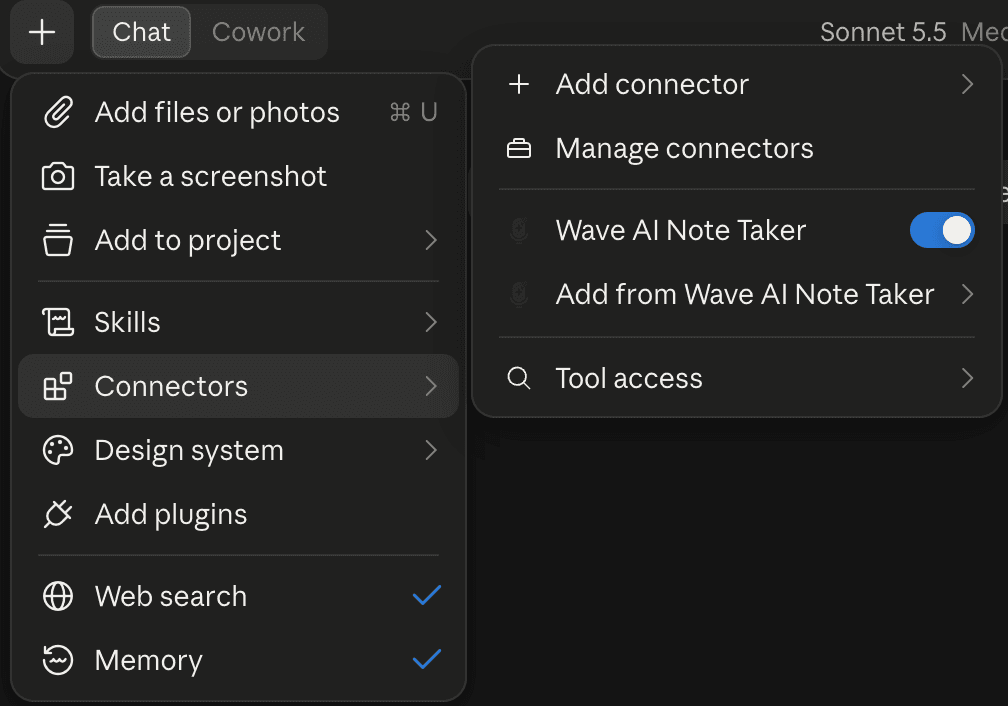
You're sent straight back to Claude, with Wave already switched on. To check, open the + menu in a chat and hover Connectors: Wave AI Note Taker should be on.
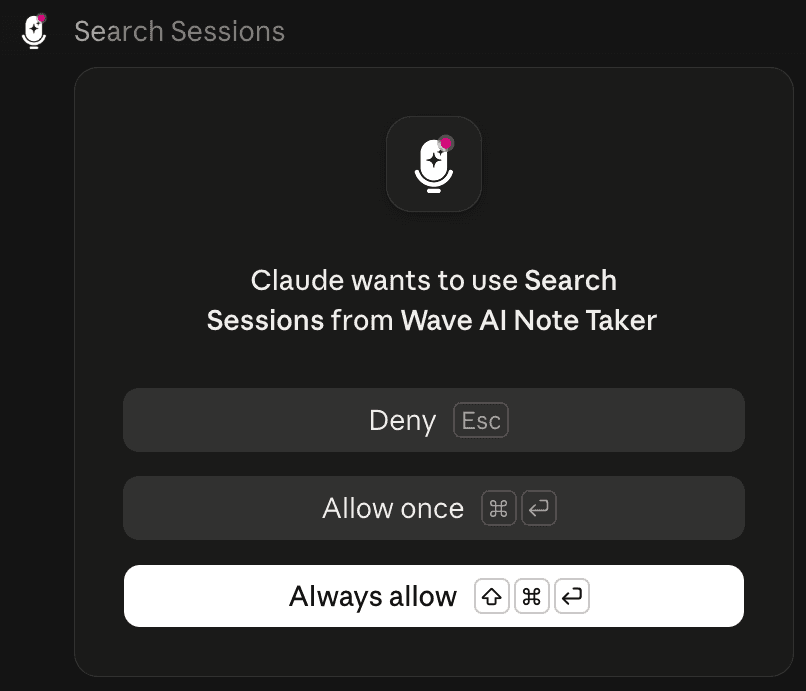
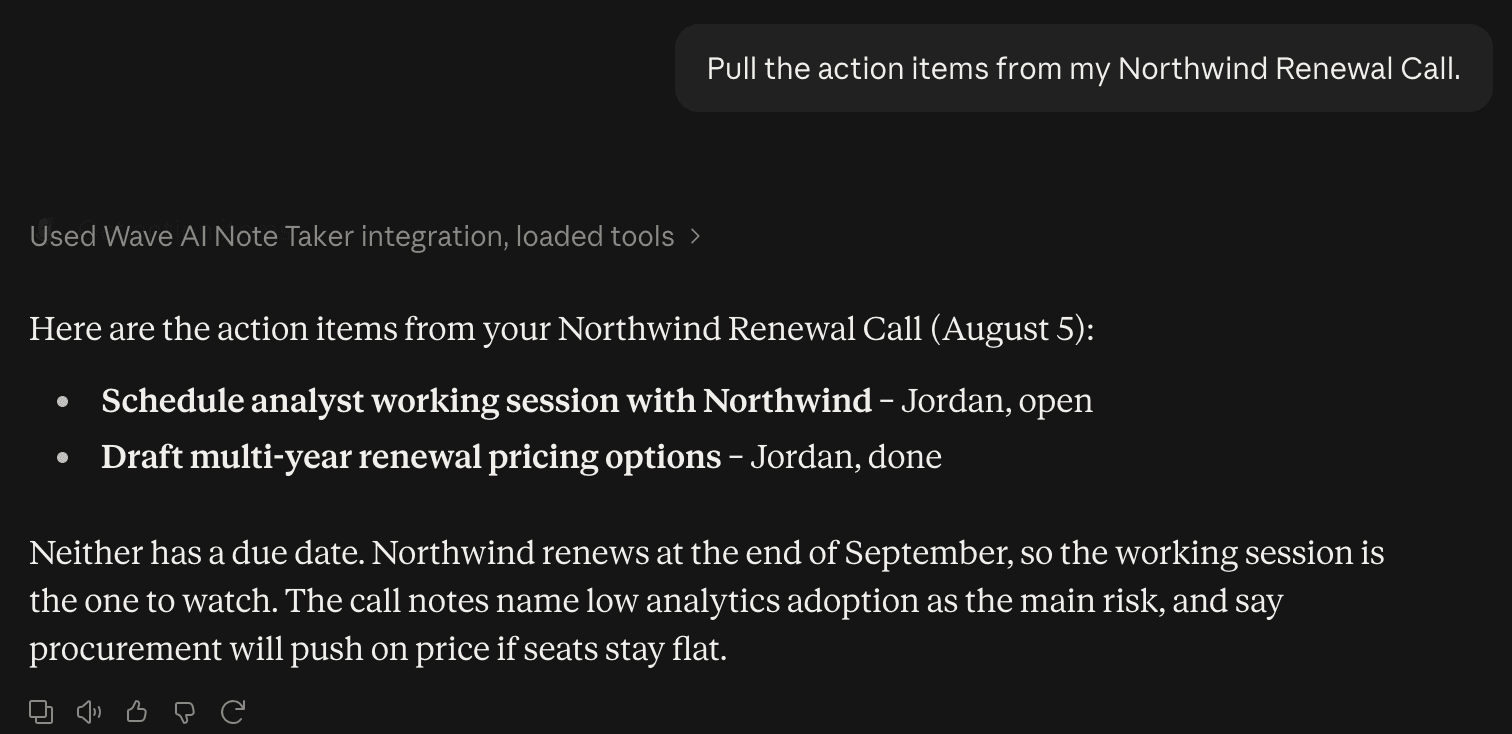
Ask your question. The first time Claude uses Wave, it asks for permission — select Allow once, or Always allow so it stops asking.
Connectors belong to your Claude account, so connect once from a browser or Claude Desktop and Wave is there in the Claude app on your phone the next time you open it. The directory link doesn't open on iOS or Android, so do this step from a computer.
Prefer to add it by hand? In Claude go to Customize → Connectors, select + then Add custom connector, name it Wave, paste https://mcp.wave.co as the URL, and select Add. It's the same server either way — don't keep both, or you'll see two Wave entries.
Try asking
- "What did we decide in yesterday's call?"
- "Find where we talked about pricing and quote it, with who said it."
- "What are my open action items from this week's meetings?"
- "Summarize the meeting Sam shared with me."
Add "only use my Work folder" to any of these to keep personal recordings out of the answer.
Wave also has six ready-made prompts, such as Weekly recap, Prep for a meeting, and Draft a follow-up email. Open the + menu in a chat to pick one. See the full list.
Claude can search and read your sessions, save action items, edit a session's title, notes, summary, and tags, file sessions into folders, and share a session when you ask it to. It can't delete a recording or change a transcript.
If it doesn't work
- Claude can't find any sessions. You connected a Wave account with no recordings in it — usually a different Google or Apple login. Remove the connector and connect again with the right account.
- The sign-in keeps looping. Finish signing in inside the window Claude opened, in the same browser. Then restart Claude Desktop if you're using it.
- Two Wave entries. You added Wave from the directory and by hand. Remove one.
Disconnect
In Claude, go to Customize → Connectors, find Wave AI Note Taker, and select Remove. Claude loses access to your recordings immediately.
You can also disconnect it from Wave's side: on app.wave.co, go to Settings → Integrations → Connected AI apps and select Disconnect next to Claude. Access stops right away.
Using Claude in the terminal? See Connect Wave to Claude Code. For what any connected tool can and can't do, see the Wave Agents toolkit.
Was this article helpful?
Still need help?