Editing Summaries and Transcripts
Fix a wrong name, tidy a summary, or correct a mis-heard line — every part of a finished session is editable by hand.
Wave's transcript and summary are yours to correct. A mis-heard product name, a speaker labelled wrong, a summary line you'd word differently — all of it is editable by hand, and your edits flow straight into exports, emails, and shared links.
Editing the Summary
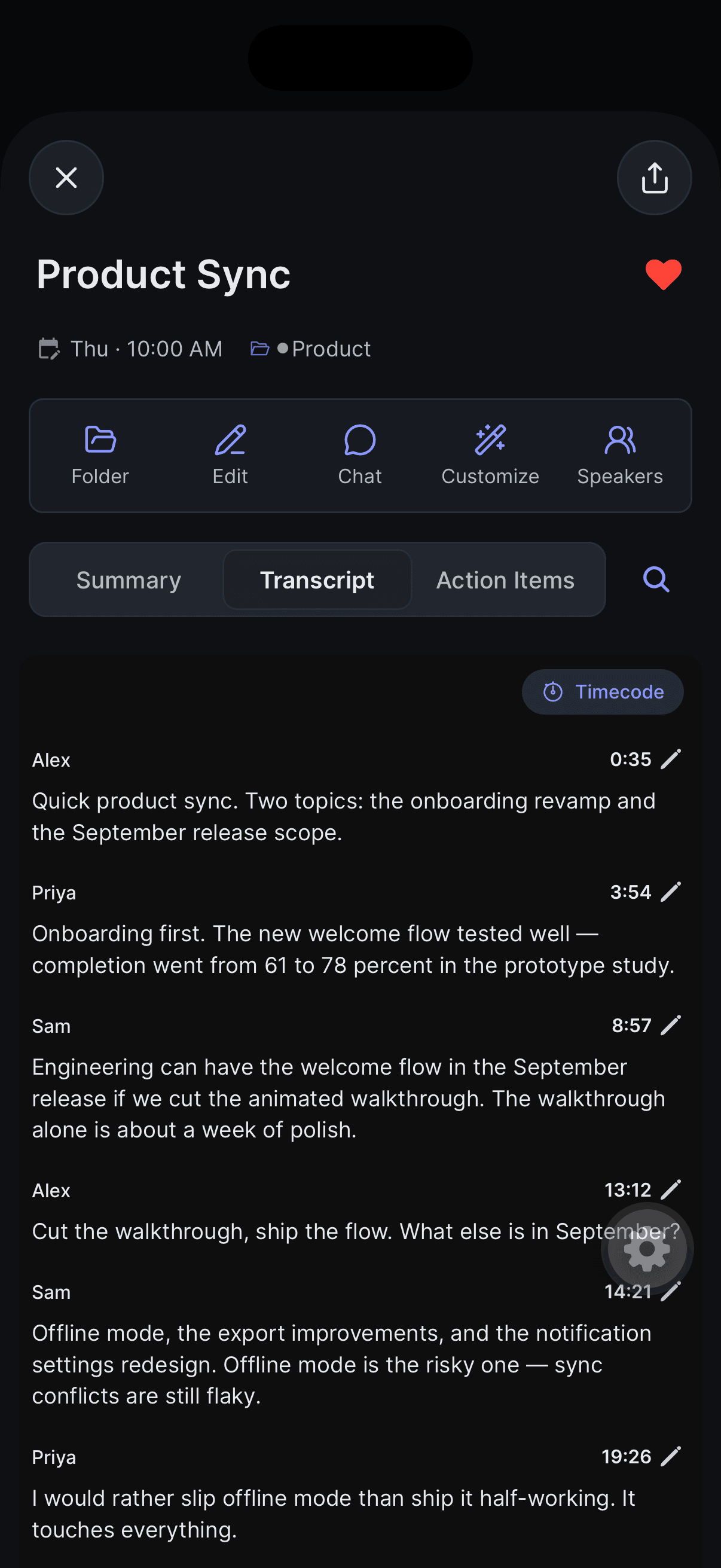
Open the session and tap Edit in the row of action buttons under the header. Wave opens that session's editor in a browser window, already in editing mode. Change what you need and tap Save Changes, or Cancel to back out, then close the window to return to the app.
Applying a new style from Customize Summary rewrites the summary from scratch and your hand edits go with it. Restyle first, edit second.
Correcting a Line in the Transcript
Every transcript is a list of time-stamped, speaker-labelled segments, and each one is editable on its own.
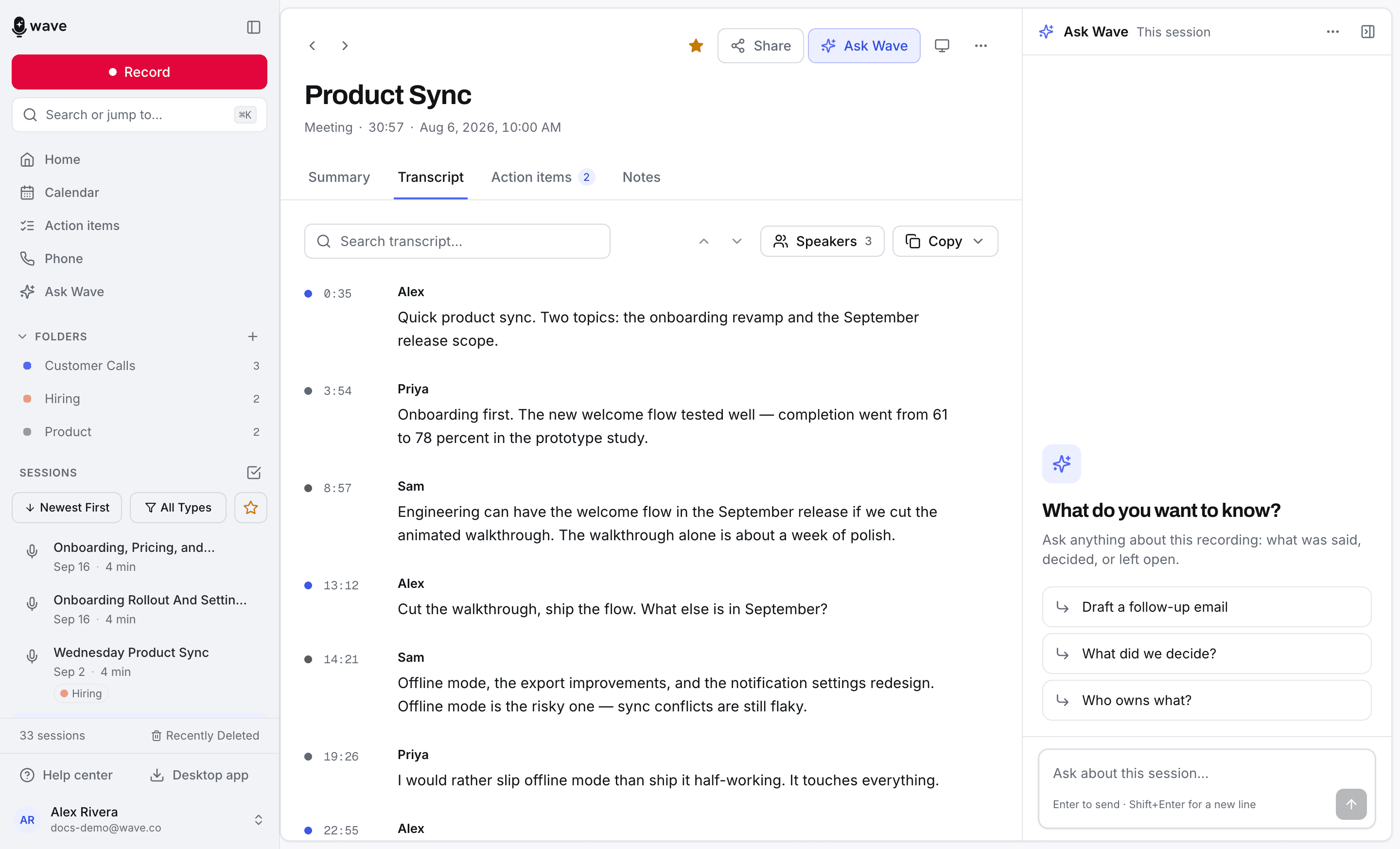
On the Transcript tab, tap the small pencil at the right of a line, or press and hold the line itself. The segment opens with a Speaker Name: field and a Transcript Text: field. Tap Save to keep the change or Cancel to drop it.
A normal tap on a line does something else: it jumps audio playback to that moment.
Fixing Speakers
Changing the speaker name inside a segment fixes only that segment — handy when one sentence got attributed to the wrong person. To rename someone everywhere, use the speaker tools.
Type over the Speaker Name: field inside a segment to reassign that one line. Or press and hold the line and choose another speaker from the list — and if the right person isn't listed yet, tap Split into new speaker… and name them. That splits the line out of the label it was under.
For a session-wide fix, use the Speakers action button — see Voice ID and speaker identification.
Searching Inside a Transcript
This finds exact text inside the session you have open — not the same thing as the library-wide search on your home screen. Every platform has a Search transcript... box on the Transcript tab, a counter, and arrows to step through matches.
On iPhone and Android the box is behind the magnifying glass to the right of the tabs; matches highlight in yellow and the counter reads like "12 results | 3 of 12". On the web the box sits above the transcript and the counter reads "3 of 12", with No results when nothing matches. On desktop the box is at the top of the tab, with Previous match and Next match.
Timestamps: Clock Time or Timecode
By default each line is stamped with how far into the recording it falls — 12:45 means twelve minutes and forty-five seconds in. For a meeting, the wall-clock time is often more useful.
On iPhone and Android, a small pill at the top right of the transcript shows the mode you're in — Timecode or Clock time. Tap it to switch. Clock time counts from the session's start, so a line reads 2:47 PM instead of 12:45. The pill only appears on sessions with a recorded start time.
On the web, a Timestamps checkbox above the transcript shows or hides the times; the web and desktop apps both show elapsed timecode only.
FAQ
Yes. Edits save to your Wave account, so a correction made on desktop is there on your phone and at app.wave.co.
No. The summary is written once from the original transcript and isn't rewritten when you correct a line. If a correction matters that much, restyle the session from Customize to regenerate it.
Yes — the Copy button on the Transcript tab on web and desktop copies it with formatting. For files, see sharing and exporting your Wave sessions.
Was this article helpful?
Still need help?