Sharing and Exporting Your Wave Sessions
Turn any session into a PDF, a Word file, a Notion page, an email, or a public link — from any Wave app.
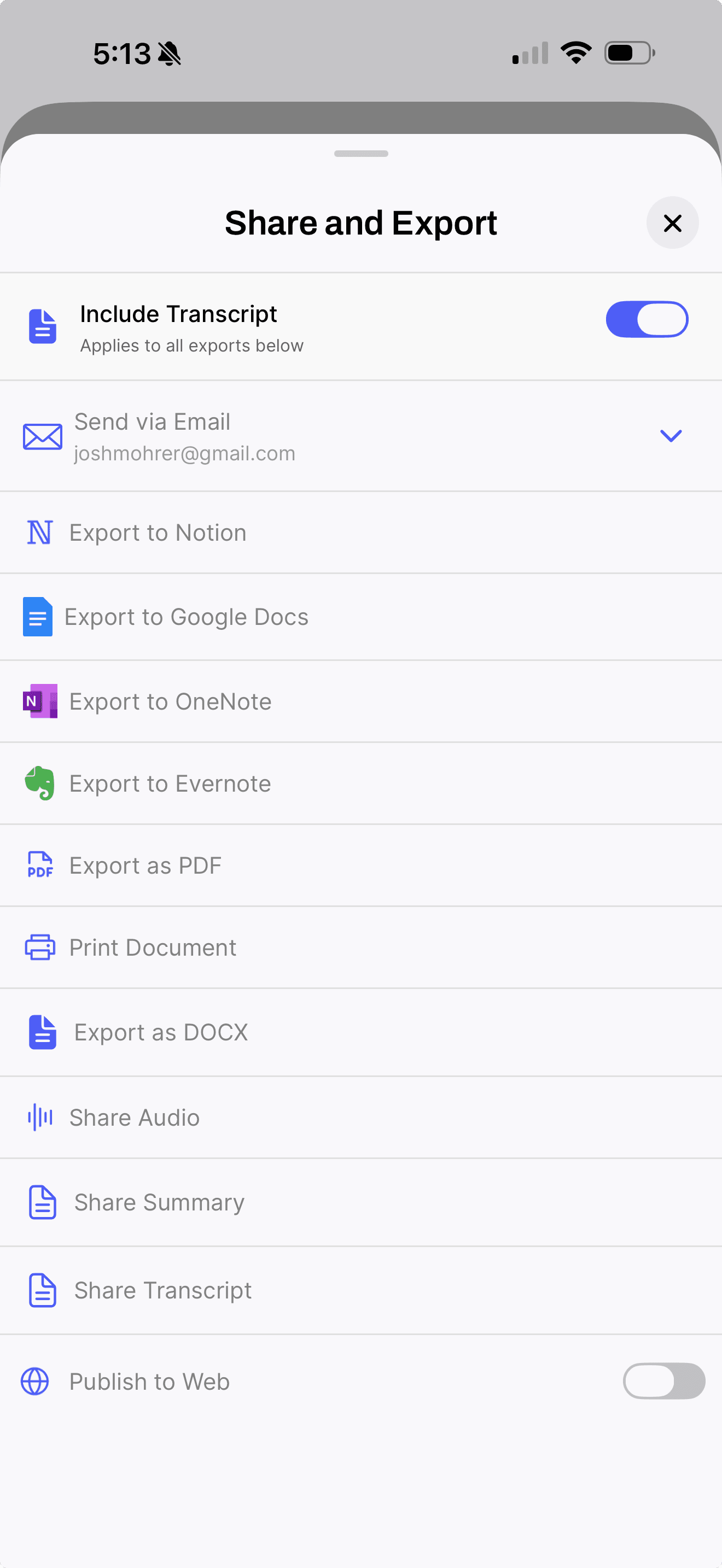
Every finished Wave can leave the app as a file, a page in your workspace tool, an email, or a public link — and it all lives behind one button on the session.
Opening Share and Export
Open the session and tap the share icon in the top bar. Share and Export slides up with every destination in one scrolling list.
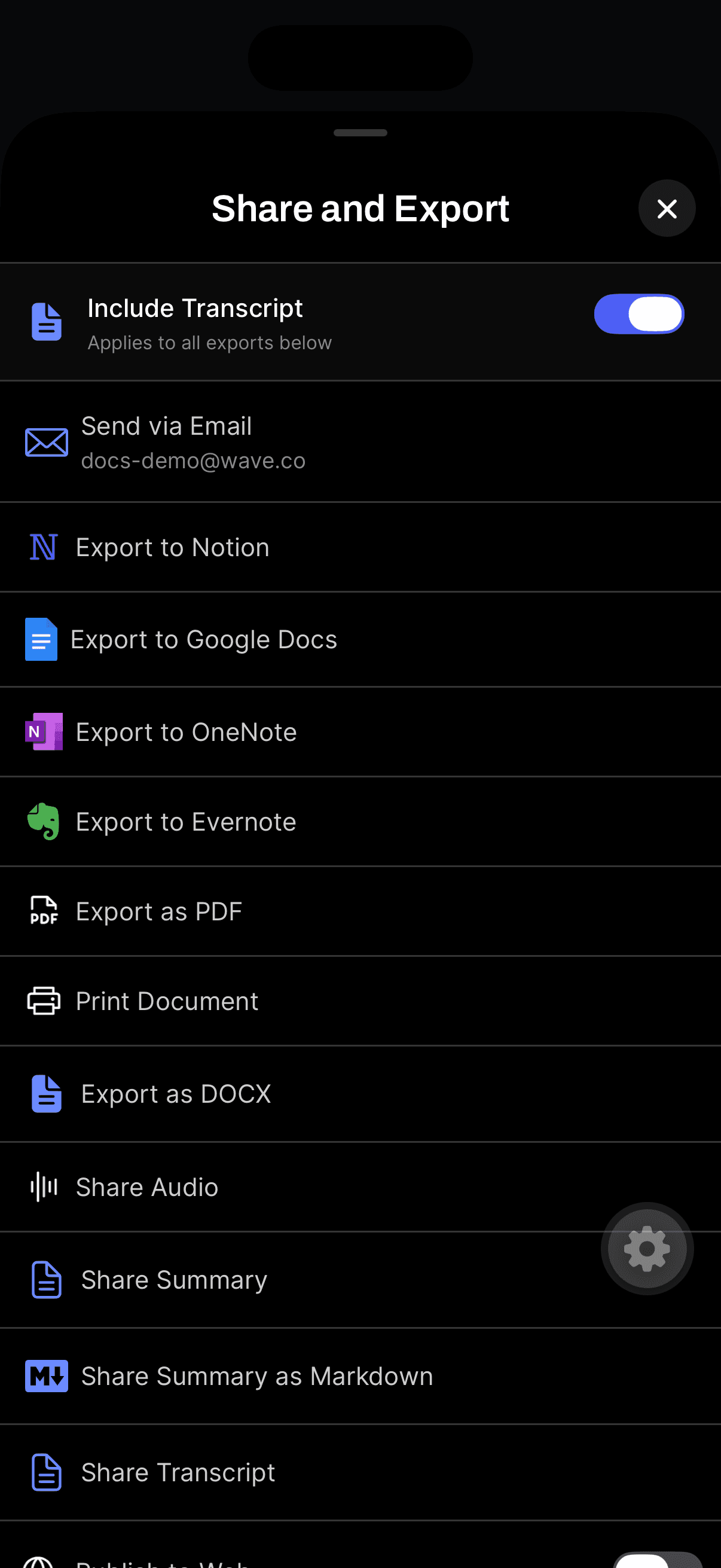
Include Transcript
Every export carries the session's title and summary. The Include Transcript toggle at the top of the sheet (Include transcript on desktop) decides whether the full transcript rides along too, and it applies to everything below it — PDF, DOCX, email, Notion, all of it.
Wave saves that choice to your account, so wherever you set it, that's how it stays on your phone, on the web, and on desktop.
Files you can download
- PDF — a formatted document with the title, summary, and (if the toggle is on) the transcript. Labelled Export as PDF on mobile, PDF on web and desktop.
- DOCX — the same document as an editable Word file. Export as DOCX on mobile, DOCX elsewhere.
- Print — Print Document on mobile builds the PDF and hands it to the system print dialog (AirPrint on iPhone). On the web, Print opens the PDF in a new tab and starts printing. On desktop, the Print tile opens a printer-ready version.
- Audio — Share Audio on mobile passes the recording file to the system share sheet. On web and desktop, Audio downloads it. When a session has video instead, the web button reads Video and downloads that.
On iPhone and Android, Share Audio is also in the player: tap the speed button (1×) at the right of the audio player, then choose Share Audio.
Copy and quick shares
On mobile, Share Summary, Share Summary as Markdown, and Share Transcript hand plain text to the system share sheet, so a session lands in Messages, Slack, or a note in a couple of taps.
On the web, Summary and Transcript in the Share section copy to your clipboard. Desktop's Copy Summary and Copy Transcript tiles copy formatted text, so headings and structure survive the paste into Notion, Word, or Google Docs.
Send it to your workspace app
Wave exports directly into four tools. Connect the account once, then every session is a tap away:
- Notion — Export to Notion on mobile, Notion on web and desktop.
- Google Docs — creates a new document in your Drive.
- OneNote — asks where to put it the first time (Select Notebook, then a section) and remembers your answer.
- Evernote — creates a note in your default notebook.
If a connection has lapsed you get a clear message rather than a silent failure — "Notion Needs Reconnecting", "OneNote Connection Expired", "Evernote Connection Expired". Reconnect the account in settings and run the export again.
Want this to happen on its own after every recording? See auto-share.
Email and public links
Two more destinations sit in the same sheet and have their own articles:
- Email a summary to yourself or one of your saved addresses.
- Publish to Web turns the session into a read-only page anyone can open, with an optional password.
FAQ
Two of the errors come from Microsoft rather than Wave. "Your Microsoft account doesn't have the required OneNote license." means the account can't create OneNote pages. "Access blocked by your organization's security policies. Check with your IT administrator." means your workplace tenant is blocking the connection. Neither is fixable from inside Wave.
On the web, yes — multi-select several sessions and use Download, which gives you a ZIP of PDFs. See bulk actions.
Yes. Transcript content in an export uses whatever speaker names the session has, so naming speakers first — or letting Voice ID do it — makes the exported transcript much easier to read.
Yes. Sharing and exporting are available on every plan.
Was this article helpful?
Still need help?