Wave Assistant
Ask questions across every session you've recorded — or narrow the chat down to one folder or one recording.
Wave Assistant is an AI chat that can read your recordings. Ask it a question, and it searches your sessions, reads the relevant transcripts, and answers with links back to the sessions it used.
Three things you can chat with
- Wave Assistant — every session in your account. Good for "What did we decide about pricing?" or "Summarize the themes across my therapy sessions."
- A folder — every session inside one folder. Good for comparing discussions in a single project or client. Available on iPhone and Android.
- A single session — one recording. Good for finding a moment, pulling quotes, or listing follow-ups from that conversation.
Opening a chat
Tap the Chat tab. It opens on Wave Assistant — Ask me anything - I can search across all your sessions, answer questions, or help you find specific conversations.
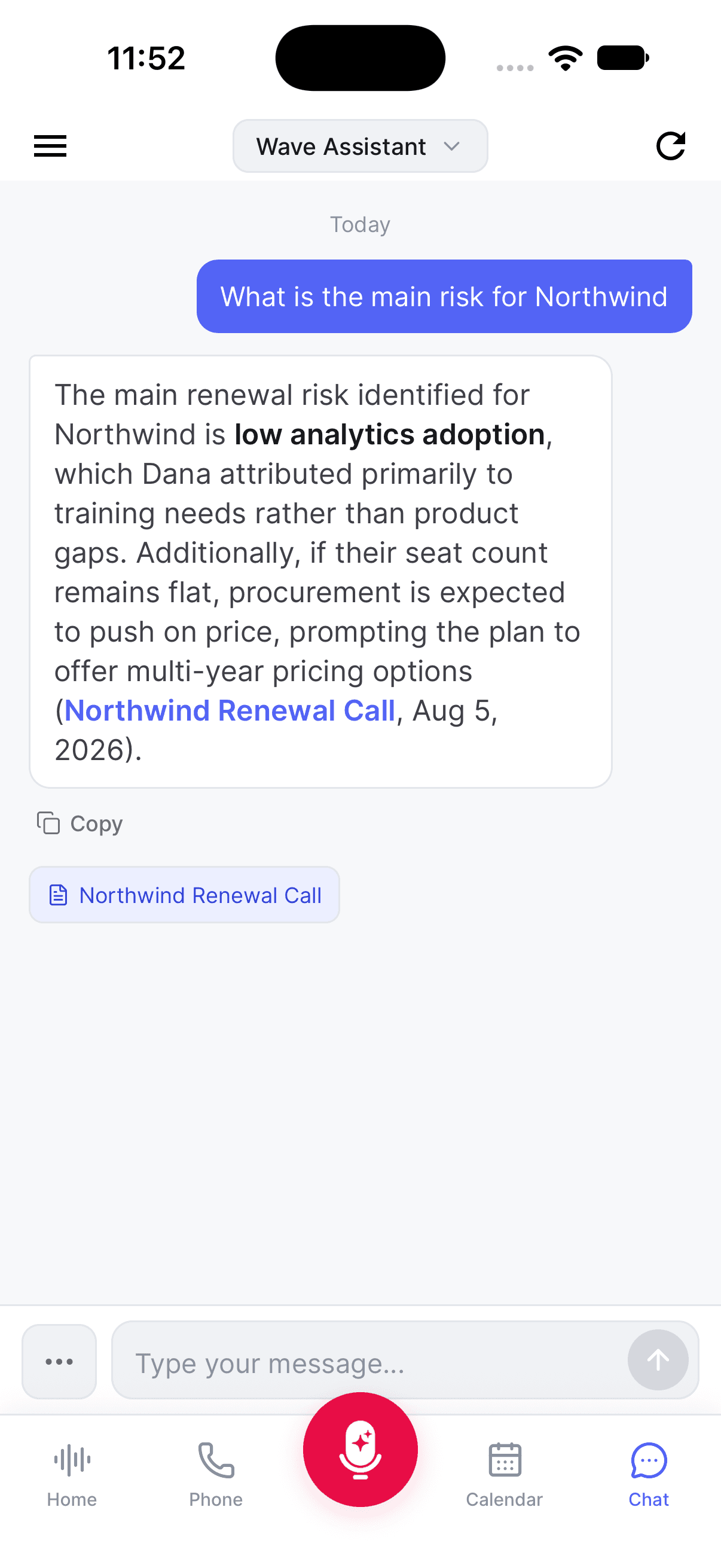
To change what the chat is pointed at, tap the title at the top to open Select Item, then choose Wave Assistant, a folder under Folders, or a recording under Recent Sessions.
You can also start from a recording: open it and tap Chat in the row of action buttons. Under a session's summary, WaveAI Chat Suggestions are one-tap starter questions.
First time on iPhone or Android? If your account predates automatic indexing, the Chat tab shows Enable Cross-Session Search with a Start Processing button. Tap it once. You'll see Processing Your Sessions while it runs — usually a few minutes. After that, every new recording is indexed automatically.
What you see while it works
Wave Assistant tells you what it's doing as it goes: Searching your sessions..., Reading session transcript..., Analyzing multiple sessions..., Generating response....
When the answer arrives, the sessions it drew from are listed underneath it — as tappable chips on mobile and desktop, and next to From on the web. Open one to jump straight to that recording.
Your chat history
Assistant conversations are saved, so you can pick one back up later.
- iPhone & Android — tap the menu icon at the top left for Recent Chats. Tap New to start a fresh conversation, or the trash icon on a row to delete one.
- Web — the Recent Chats sidebar sits to the left of the chat. New starts a conversation; the trash icon on a row deletes it.
- Desktop — click History in the header (Hide history closes it) and New chat to start over.
Session and folder chats keep their own history attached to that session or folder, separate from your Assistant conversations.
To keep a copy of a conversation, see saving or exporting a Wave AI chat.
Tips
- Be specific. "What was the address John gave me on our call?" beats "find address".
- Ask it to work across recordings: "What decisions have I made in my recent meetings?"
- Naming your speakers — or letting Voice ID do it — makes answers about who said what far more reliable.
- If you're hunting for a particular recording rather than an answer, search is faster than chat.
Was this article helpful?
Still need help?