Searching Your Waves
Find a recording by what was said in it, not just by what it's called.
Wave's search doesn't just look at titles. It combines AI matching on meaning with exact keyword matching over your titles and transcripts, so "the pricing objection from the demo" finds the right Wave even when nobody in it said the word "objection".
Where search lives
On iPhone, scroll to the top of your Waves list and pull down — the search field appears in the header, labelled Search Waves. On Android it's a box sitting above the filter chips.
Start typing and Wave searches after a short pause, showing Searching... while it works.
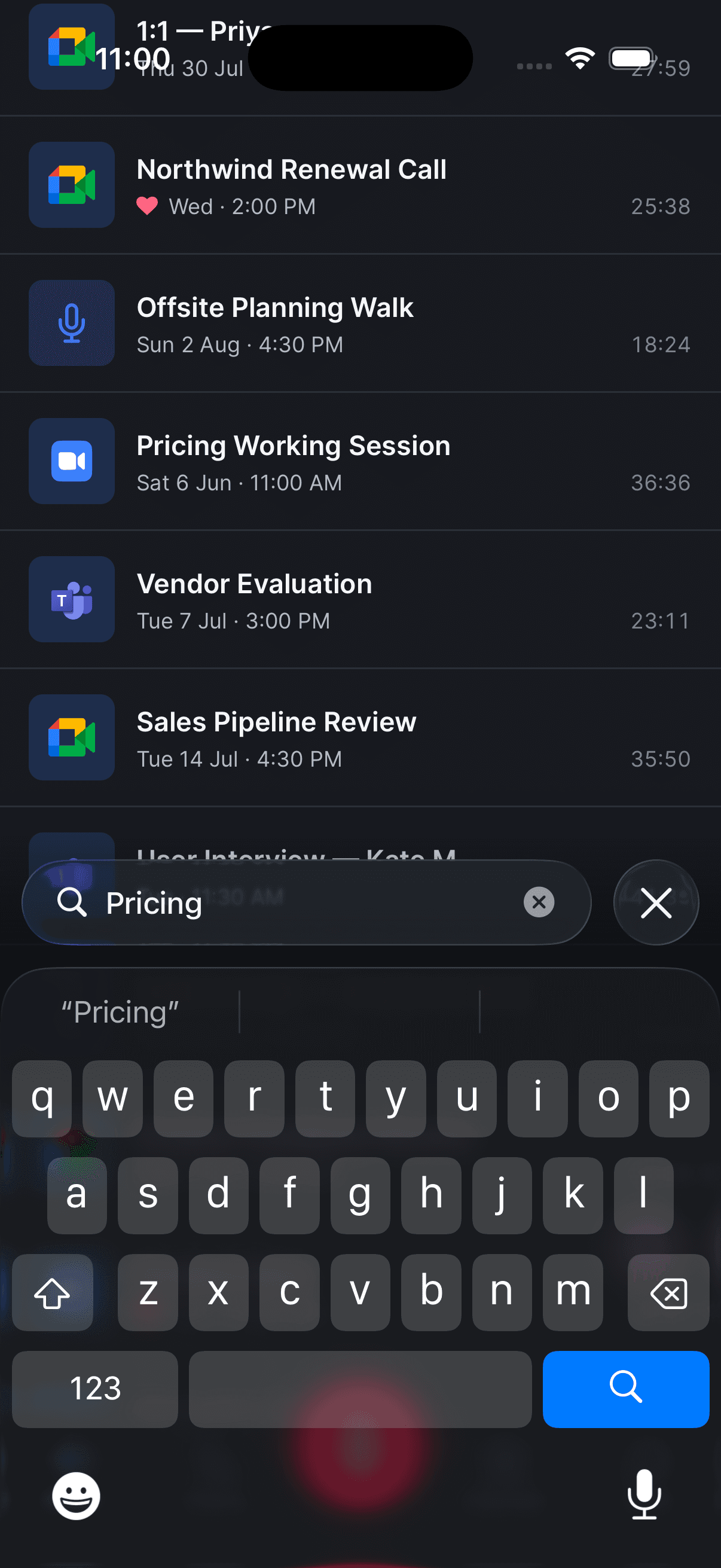
Reading the results
On iPhone and Android, Wave shows a count above your results and a two-way toggle:
- Best Match (the default) ranks by how well each Wave fits what you asked for.
- Recent takes the same set of results and reorders them newest first.
Wave returns its 20 strongest matches, then appends any other Waves whose titles contain your words.
Search and Wave Assistant are different tools. Search finds the Wave; the Assistant reads across your Waves and answers a question about them.
If a Wave doesn't turn up
- It's still processing. A Wave has to finish transcribing and summarizing before its contents are searchable. On web you'll see the hint "Search will be available once your sessions finish processing".
- It's older than your index. Waves recorded before your account was indexed match on title only until indexing catches up. Try a word from the title in the meantime.
- Your connection dropped. If the search request fails, Wave quietly falls back to matching titles on your device, so you'll get fewer results than usual rather than an error.
- It's deleted. Search doesn't cover Recently Deleted — restore it first.
Finding Waves from iPhone Spotlight
On iPhone, Wave also adds your Waves to iOS Spotlight, so you can find one without opening the app. Swipe down on the Home Screen, type a Wave's name, and tap the result to jump straight into that session.
Spotlight entries carry the title, the type and length (for example "Meeting · 42m"), and the summary text, so a search matching your summary can surface a Wave too. This is iPhone only — Android and the web don't have an equivalent — and entries refresh automatically, including when Wave isn't running. Deleting a Wave removes it from Spotlight, and signing out clears all of them.
FAQ
Both. The keyword half of the search runs over your transcript text and titles, and the AI half matches on what a Wave is about. A phrase somebody actually said is a good query.
Yes — open the Wave, go to the Transcript tab, and use Search transcript... there. That's separate from library search.
They don't — it's the same set of Waves, reordered by date instead of by relevance. Use Recent when you know roughly when something happened.
The results do, because they're the same library. There's no shared search history — each device keeps whatever you last typed to itself.
Was this article helpful?
Still need help?