Customizing Your Summary
Get summaries in the shape you actually want — 31 ready-made templates, your own saved formats, one style set as your default for every recording, or a rewrite in another language.
Wave's default summary is structured notes with key points and actions. If that's not the shape you need — a board brief, a sales pipeline report, a study guide, or something you describe in your own words — Customize Summary rewrites the summary in that format. You can set a style while you record so the summary comes out right the first time, make one style your default so every recording uses it, or restyle any finished session as many times as you like.
Set a Style While You Record
Choosing up front means no regeneration afterwards. The style is saved onto that session and used when Wave writes the summary.
While a recording is running, tap Summary in the row of tools on the recording screen. The Summary Style picker has a Search templates... box, Default Wave Summary at the top, Your Saved Styles if you have any, then the templates grouped by category. Tap one, and the Summary tool highlights to show a style is set.
Restyle a Summary You Already Have
Open the session and go to Customize:
- iPhone & Android: tap Customize in the row of action buttons under the session header. The Summary style screen opens.
- Web: click More actions (the ⋯ button at the top of the session) → Customize summary. A session with no summary yet also offers Choose a style.
- Desktop: click More actions (the ⋯ button) → Customize summary.
The Style tab works the same everywhere. Some labels are shorter on iPhone and Android; they're shown in brackets.
Pick a card under Pre-built Templates (Styles), or one of your own under Saved Customizations (Your styles).
Or write your own instructions under Add New Customization (Write your own). The field reads "Tell Wave exactly how you want it to generate your summaries". For example: "Group by speaker, concise bullet points, action items at the top."
Decide whether to keep what you wrote. If you typed instructions from scratch, turn on Save this customization (Save this style) and give it a name. If you started from one of your saved formats and changed the text, Wave asks whether to Update that format, Save as new, or use the change Just this once. If you started from a pre-built template and changed it, choose Save as my own version to keep your edited copy under its own name — Wave's template stays as it is — or Just this once.
Tap Apply Style Customization (Apply). The screen closes and the session shows a processing state while Wave rewrites the summary. The new summary appears on its own when it's ready, and its Style: label names the format you applied.
Applying a style replaces the current summary. If you've hand-edited the summary, those edits are gone once a new style is applied — so restyle first, then edit. See editing summaries and transcripts.
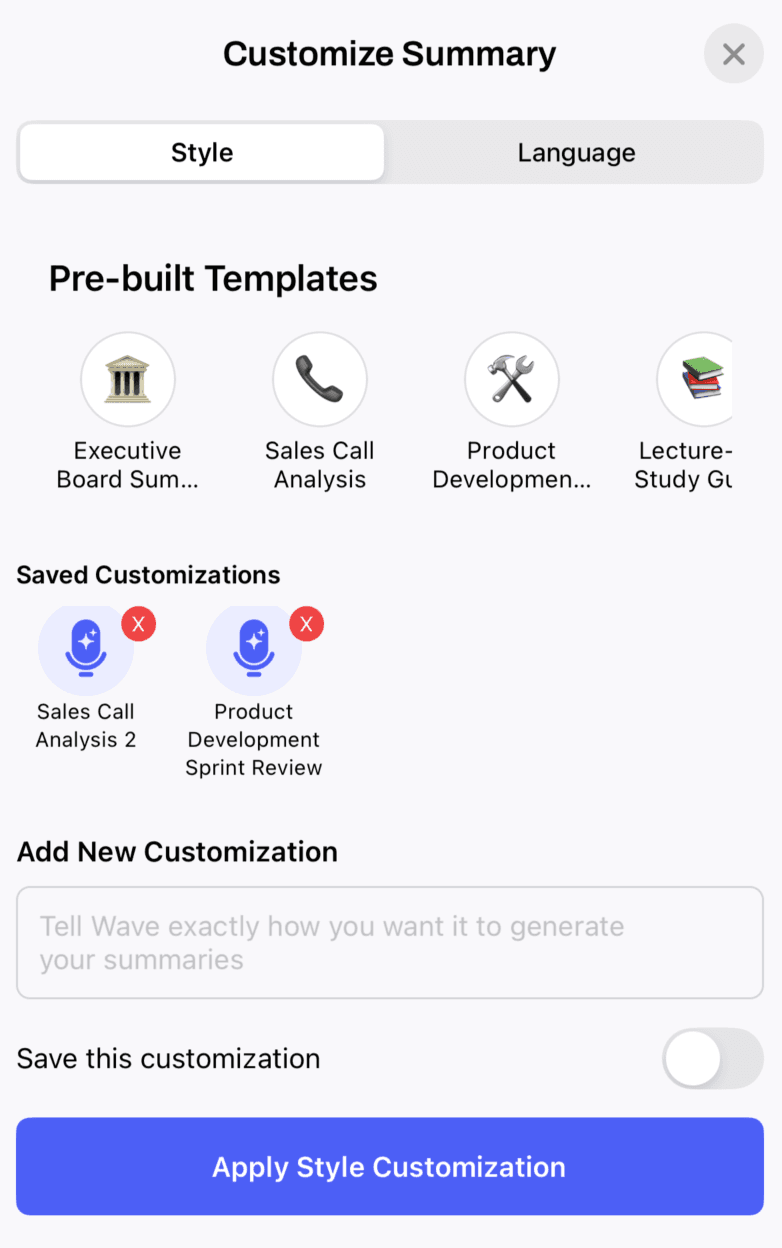
The 31 Pre-Built Templates
Executive Board Summary · Sales Call Analysis · Product Development Sprint Review · Lecture-to-Study Guide · HR Performance Review · Content Marketing Plan · Investor Pitch Summary · Freelancer Client Brief · Team Stand-Up Summary · Customer Support Resolution · Voice Memo Notes · Project Status Report · Quarterly Business Review · Stakeholder Update · Strategy Session Notes · Vendor Meeting Summary · Market Analysis Brief · Product Roadmap Review · Budget Review Meeting · Partnership Review · Operations Review · Legal Client Consultation · Medical Consultation · Creative Brainstorming · Podcast Episode Summary · Crisis Management Meeting · Real Estate Consultation · Research Interview · Training Session Summary · Creative Writing Interview · Legal Deposition Summary
Save Your Own Formats
Anything you save shows up as a card under Saved Customizations (Your styles on iPhone and Android) in every session's Customize screen, and in the recording-time style picker, on every device.
Edit a Saved Format
Every saved format can be changed after the fact. Editing never rewrites summaries you've already generated with it — re-apply the format from Customize on any session you want redone — and if the format is your default, new recordings pick up the new wording straight away.
- From a session's Customize screen: use the edit (pencil) button on the format's card, change the title or instructions, and save.
- From Settings: every platform lists your saved formats with edit and delete controls. The exact paths are below.
Make Your Own Version of a Wave Template
The 31 pre-built templates can't be edited in place, but you can start from one: pick it in a session's Customize screen, change the instructions, and choose Save as my own version. Your copy appears under Saved Customizations with its own name, and Wave's original stays available untouched.
Go to Settings → Notes & titles → Summary formats to manage them outside a session. Tap New format, fill in a Title and your Summary instructions, then tap New format at the top to save it. Your formats are listed under Saved formats, each with a pencil (edit) and a trash (delete) button. In a session's Customize screen, the same two buttons sit on each card under Your styles.
Set One Style as Your Default
If you always want the same format, set it once. Every new recording on your account then uses it — phone, desktop, web, the Chrome extension, meeting bots, and phone calls — and because your emailed notes are that same summary, the email follows too. Any saved format or pre-built template can be the default.
Go to Settings → Notes & titles → Summary formats. The Default summary style row at the top reads Off until you set one. Tap it to open the style picker and choose a saved format or a template, or tap Set as default under any of your saved formats. Confirm Set as default on the “Set as your default style?” prompt. The row then shows the style's name with Turn off below it, and the chosen saved format is marked Default.
The confirmation is deliberate: this applies to every new recording on every device until you turn it off. Recordings you've already made don't change — use Customize on those.
How you can tell it's on. Every summary shows a small Style: label naming the style that produced it, with your default when it came from this setting, and a Change default link right next to it. While you record on the web or desktop, the style picker shows your default's name.
Use a different style for one recording. Pick any other style from the recording-time picker before the recording ends, or pick Default Wave Summary there to skip your default for that recording only.
Turn it off. Back on the same settings screen, tap or click Turn off. Deleting the saved format that is your default turns the default off as well.
Regenerate in Another Language
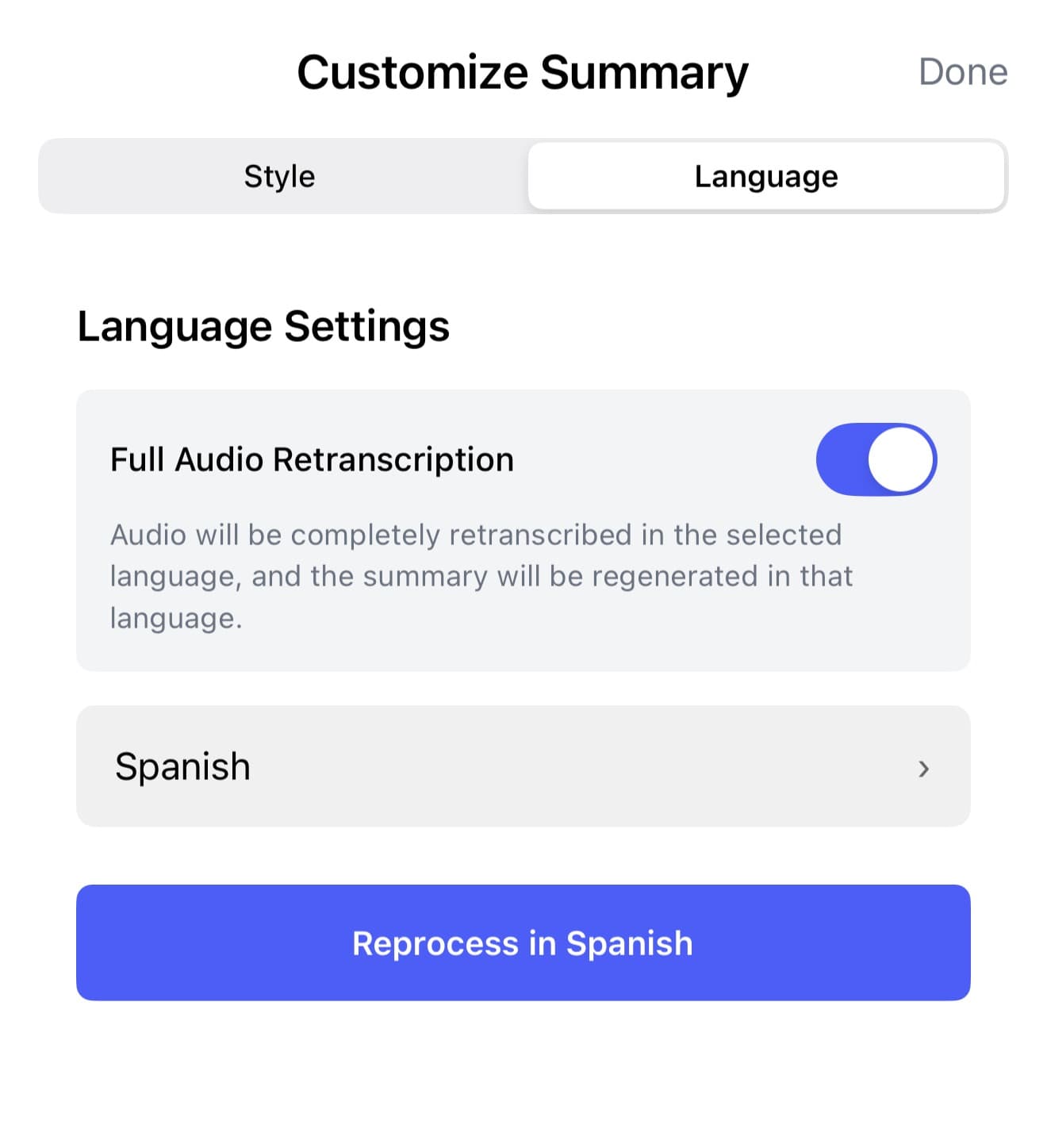
The Language tab redoes the session in a different language. Pick your language, then decide how far Wave should go:
- Full Audio Retranscription off (the default; Retranscribe the audio on iPhone and Android): the transcript stays in its original language and only the summary is rewritten. The button reads Regenerate Summary in Spanish, or whichever language you picked (Regenerate summary on your phone).
- Full Audio Retranscription on: Wave re-transcribes the original audio in the new language, then regenerates the summary from it. On desktop the button changes to Reprocess in Spanish, on your phone to Retranscribe; on the web it stays Regenerate Summary in Spanish.
Full retranscription needs the original audio. If a recording's audio was deleted, you can still restyle its summary, but the phone app hides the Language tab and the desktop app can't change its language. More detail in language and translation.
FAQ
Pick Default Wave Summary (Wave default summary on the web). It's the top entry in the recording-time style picker on every platform. On a session that's already been restyled, write "Use Wave's standard summary format with key points and action items" as a custom instruction and apply that.
Saved formats, yes — from the pencil on the format's card in a session's Customize screen, or from Settings on any device (see Edit a Saved Format). Wave's pre-built templates can't be edited directly; pick one, change the text, and choose Save as my own version to keep your edited copy.
No. The Style tab only rewrites the summary. The transcript is only touched by the Language tab's Full Audio Retranscription option.
Yes — set it as your default. See Set One Style as Your Default above. Set it from your phone, the web, or desktop and it applies to every new recording on every device, meeting bots and phone calls included, and the emailed notes match. You can still pick a different style for any single recording.
Check whether a default style is set — the summary's Style: label says your default when one was used, and the same settings screen where you set it has the Turn off control. A default is easy to set and forget.
Was this article helpful?
Still need help?