Connect Wave to ChatGPT
Install Wave from ChatGPT's plugin directory and ask about your recorded meetings in chats, company knowledge, and Deep Research.
Wave AI is published in ChatGPT's directory as Wave AI Note Taker. Install it and ChatGPT answers from your actual meetings — the decision, the exact quote, the action items — and cites the session it came from. It works in normal chats, company knowledge, and Deep Research.
Connect
Open the Wave AI Note Taker listing and select Install plugin (older builds say Try in chat).
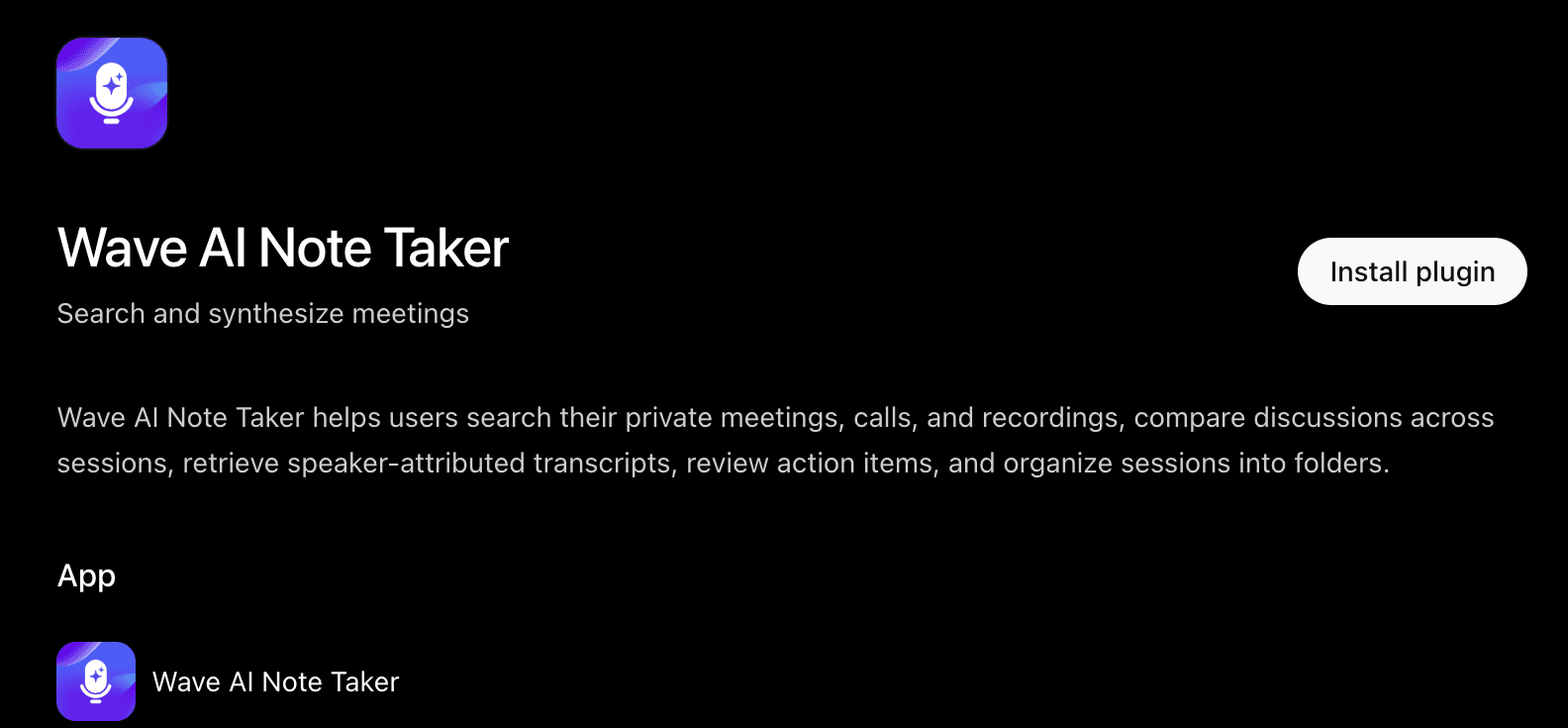
Sign in to Wave in the window that opens. Use the account you record with — if the account you pick has no recordings, Wave asks Is this the right Wave account? so you can switch. Already signed in to Wave in this browser? The window closes by itself after a few seconds and the button changes to Try in chat.
Start a chat, type @Wave, and pick Wave AI Note Taker. Then ask your question. ChatGPT can also pick Wave up on its own.
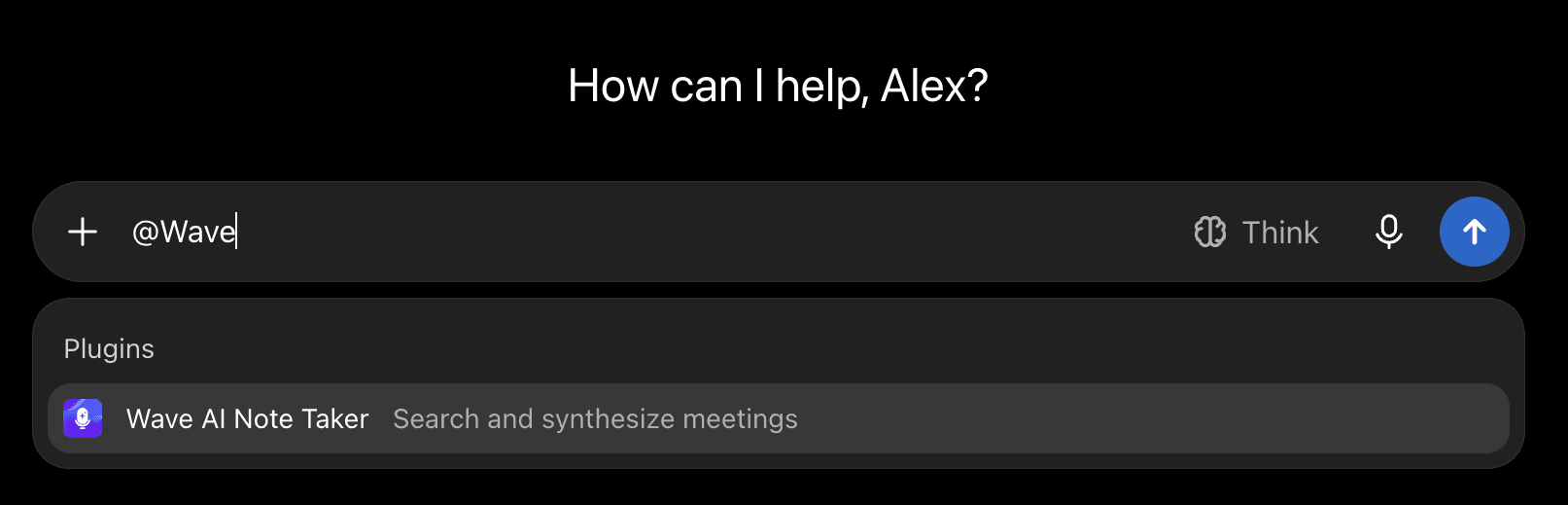
Try in chat opens ChatGPT Work, which asks free accounts to upgrade. You don't need to: close that window, select Chat at the top of the page, and use @Wave there.
No Developer Mode, no URLs to paste. Install on the web and Wave is there in the ChatGPT desktop and mobile apps too.
In a Business, Enterprise, or Edu workspace, an admin enables Wave AI Note Taker under Workspace settings → Plugins (or Apps). Everyone then signs in with their own Wave account the first time and only ever sees their own sessions.
Try asking
- "What decisions and open questions came up in my product meetings this week?"
- "Find where we discussed pricing and quote it, with who said it."
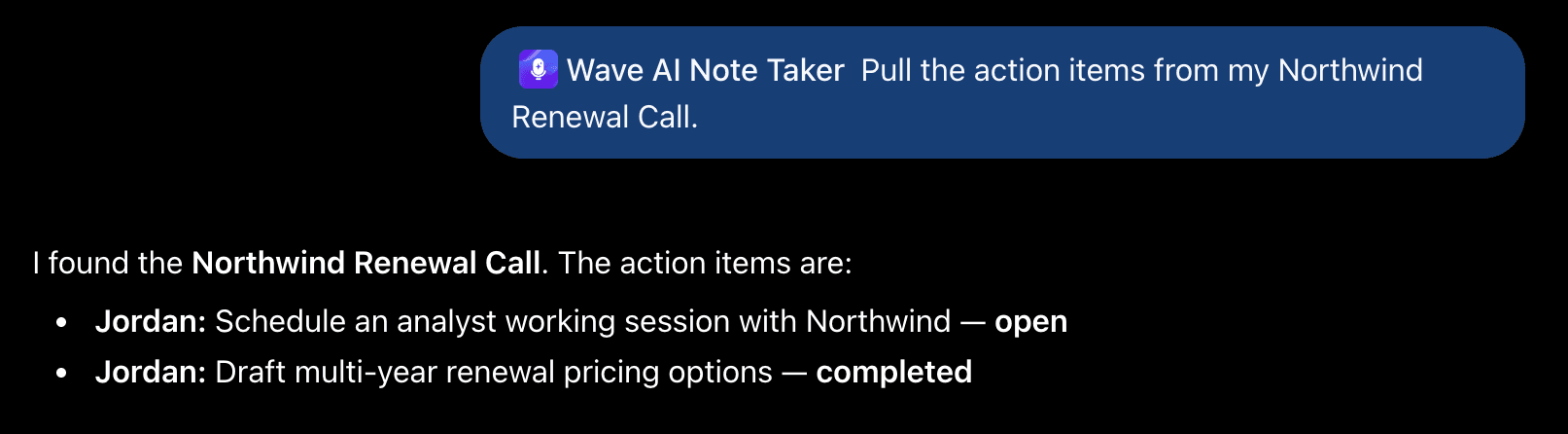
- "Pull the action items from my latest customer call."
- "Summarize the meeting Sam shared with me."
Add "only use my Work folder" to keep personal recordings out of the answer. In Deep Research, Wave shows up as a source you can cite.
ChatGPT can search and read your sessions. In managed workspaces it can also save action items, edit a session's title, notes, summary, and tags, file sessions into folders, and share a session when you ask it to; on personal plans it's read-only. It can't import recordings into Wave, and it can never delete a recording or change a transcript.
If it doesn't work
- ChatGPT can't find any sessions. You connected a Wave account with no recordings in it — usually a different Google or Apple login. Uninstall Wave, then install it again with the right account.
- The listing isn't available on your plan or workspace. Ask your admin to enable it, or add Wave by hand: turn on Developer mode under Settings → Security and login (Business: Settings → Apps → Advanced settings), open chatgpt.com/plugins, select +, paste
https://mcp.wave.coas the server URL, choose OAuth, and select Create. This path is web-only. - Two Wave entries. You installed from the directory and added it by hand. Remove one.
Disconnect
Open the Wave AI Note Taker listing, select ⋯, then Uninstall, or remove it under Settings → Plugins (or Apps). ChatGPT loses access to your recordings immediately.
You can also disconnect it from Wave's side: on app.wave.co, go to Settings → Integrations → Connected AI apps and select Disconnect next to ChatGPT. Access stops right away.
Using Codex? See Connect Wave to Codex. For what any connected tool can and can't do, see the Wave Agents toolkit.
Was this article helpful?
Still need help?