All About Folders in Wave
Group recordings by project, client, or class — and on your phone, chat with a whole folder at once.
Folders group recordings that belong together — one client, one course, one trip. A recording can sit in several folders at once, folders sync to every device you sign in on, and on your phone you can point Wave's AI chat at an entire folder instead of a single session.
How folders behave
- A session can be in more than one folder at a time.
- Deleting a folder never deletes the recordings inside it — they go back to being unsorted.
- Removing a session from a folder leaves it in your library. Deleting it from inside a folder sends the whole recording to Recently Deleted — and on iPhone and Android it's pulled out of its folders on the way, so restoring it later leaves it unsorted.
- Folder colors are chosen on iPhone and Android, and the Wave desktop app shows them too.
Creating a folder
Once a folder has recordings in it, its tile carries a badge with the count. Before you've made any folders, the grid reads No Folders Yet.
Filing recordings
Three ways, all equivalent:
- Swipe a row in any list and tap Add to Folder.
- Long-press a row and choose Add to Folder from the Actions sheet.
- Open the recording and tap Folder in the row of action buttons.
Each opens Select a folder. Tap a folder to file the recording, or type a name in the box at the top and tap the + to create a folder and file it in one go.
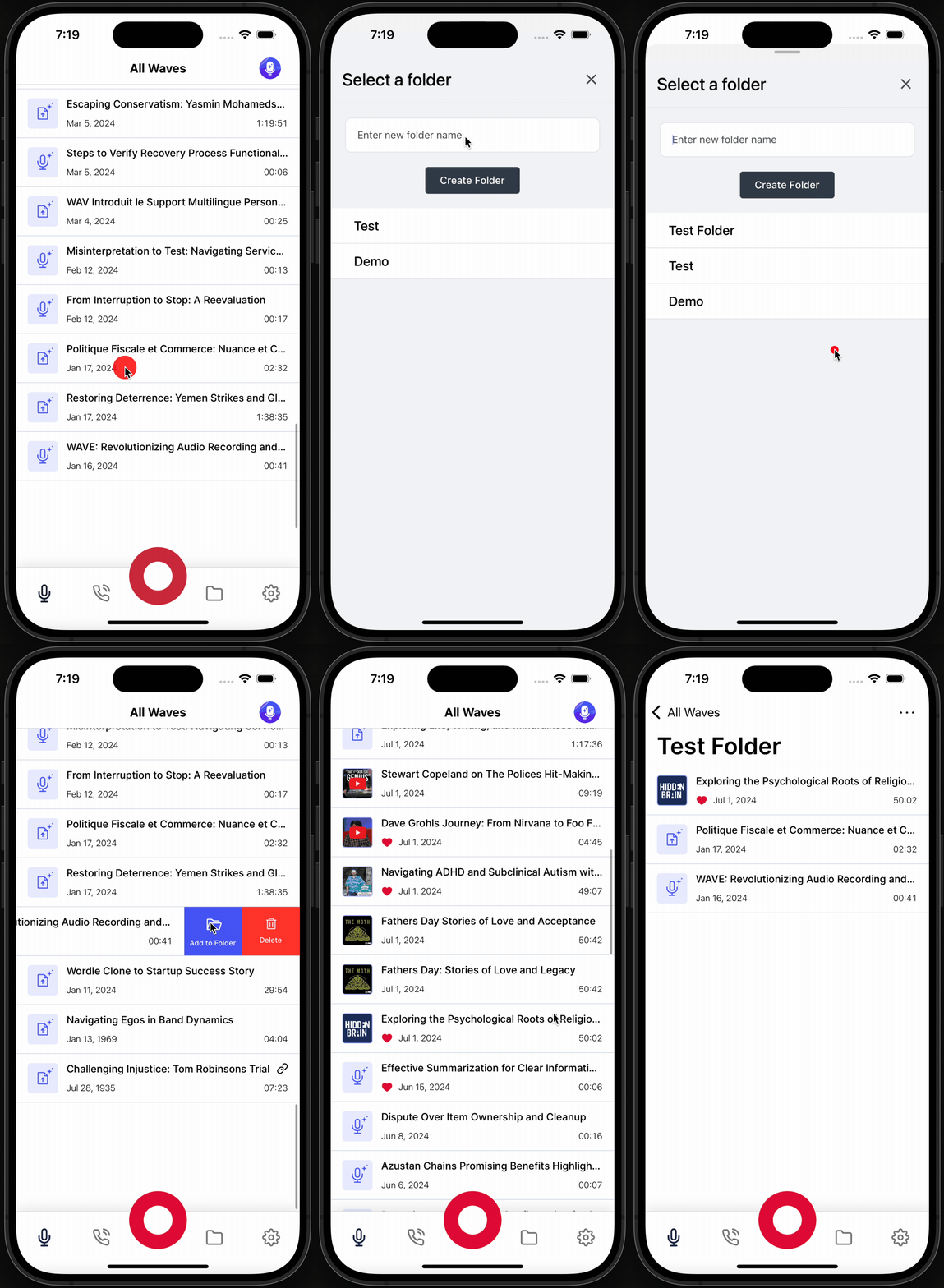
To take a recording out, open the folder, then swipe the row and tap Remove — or long-press it and choose Remove from Folder.
To file several at once, use bulk actions.
Renaming and deleting folders
Open a folder. The header has two icons: a pencil that opens Edit Folder (change the Folder Name or Folder Color, or tap Delete Folder at the bottom), and a trash icon that deletes the folder outright. Both ask you to confirm — Are you sure you want to delete this folder? This action cannot be undone.
Finding what isn't filed
Once at least one recording is in a folder, an Unsorted view appears so you can clear the backlog: it's in the filter dropdown on iPhone and Android and a filter chip in the desktop app. When everything is filed, the mobile app shows All Waves Are Organized.
Chatting with a whole folder
On iPhone and Android, Wave's AI can answer questions across every recording in a folder at once — useful for "what did we decide across these five calls?".
Open the Chat tab, tap the title to open Select Item, and pick a folder under Folders. Wave reads the transcripts and summaries of every session in that folder before answering. See Wave Assistant for the full picture.
Folder chat is currently an iPhone and Android feature. On the web and desktop apps, the Assistant searches across all of your sessions instead.
Was this article helpful?
Still need help?