Changing the Date or Time of a Wave
Correct when a session is dated so it sits in the right place in your library.
An imported file, a recovered recording, or a Wave you meant to start an hour earlier can end up dated wrong — which pushes it to the wrong spot in your library. You can set the date and time by hand, and the change syncs everywhere.
From inside a session
Tap Cancel at any point to leave the timestamp as it was.
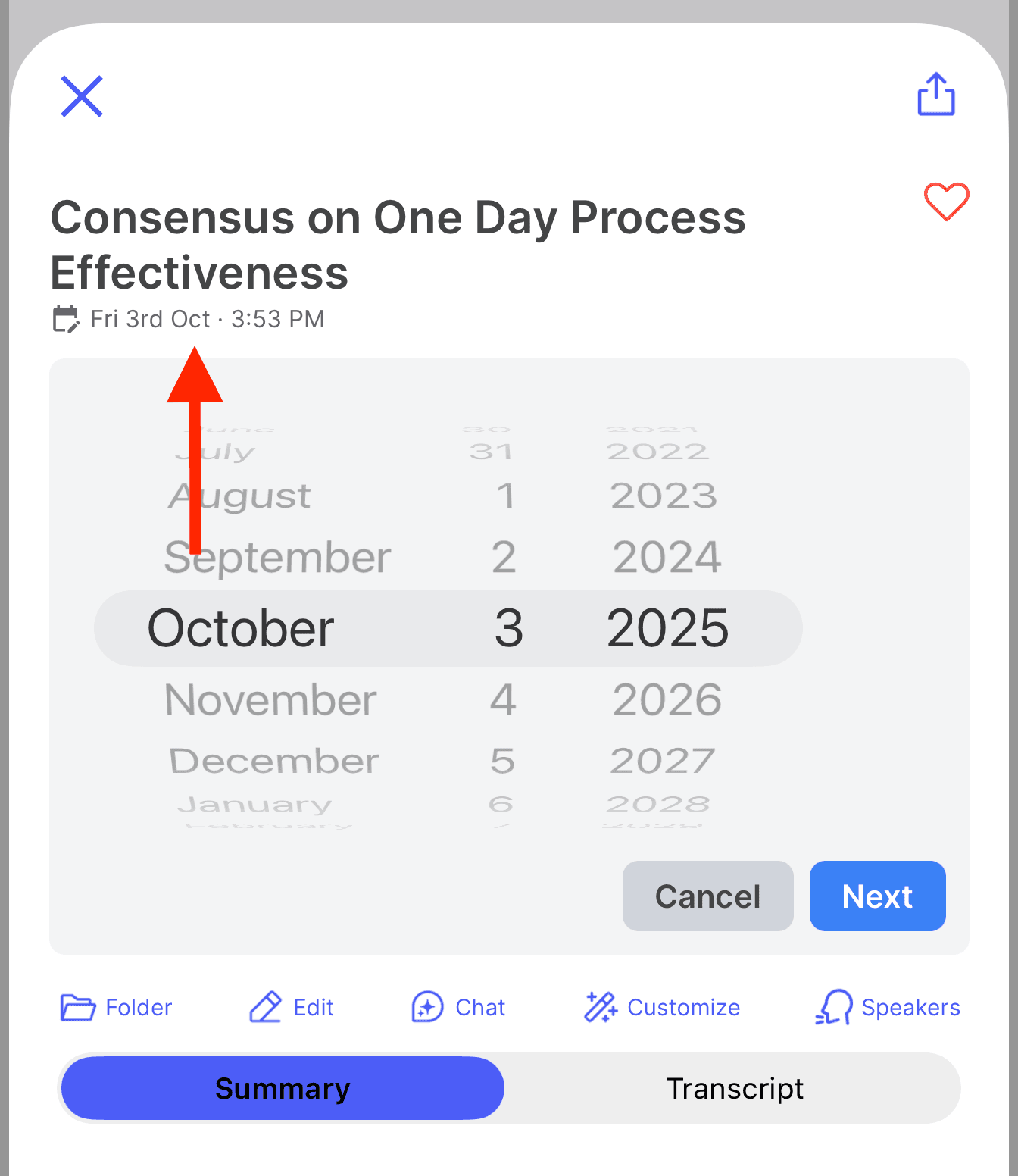
From the list
On iPhone and Android you don't have to open the Wave first. Long-press it in your library, then choose Edit Date/Time from the Actions menu. You get the same date-then-time picker.
The Wave desktop app doesn't have a date/time editor yet. Change it on your phone or on the web and the desktop app picks up the new timestamp.
After you save
The Wave immediately re-sorts into its correct chronological place, everywhere you look at it — your library, folders, search, and any other device signed into your account.
If Wave can't save the change, you'll see "Failed to update date/time. Please try again." That's usually a dropped connection; check your signal and try once more.
FAQ
No. You're changing when the session is filed, not the audio, transcript, or summary. Use Trim if you want to change the recording.
Yes, but separately. Tap the title in the session to rename it, or use Edit Title in the same long-press menu. See title format settings if you want Wave to name recordings differently by default.
Was this article helpful?
Still need help?