Trimming & Splitting a Recording
Cut the dead air off either end of a recording, or split one recording into two separate sessions — Wave re-cuts the audio, transcript, and summary to match, and one tap undoes it.
Started recording early? Left it running after the meeting wrapped? Trim cuts extra audio off the beginning or end of a recording. And if one recording accidentally captured two meetings, Split divides it into two separate sessions, each with its own transcript and summary. Either way, Wave rebuilds everything to match — and nothing is lost for good: one undo puts it all back. The one exception is a session whose audio you've since removed: that also deletes the saved originals, so its trims and splits can no longer be undone.
Opening the editor
Open the recording and tap the speed button (1×) on the right side of the audio player at the bottom of the screen. In the menu that opens, tap Trim.
The editor opens in Trim mode — the Trim / Split toggle at the top switches between the two.
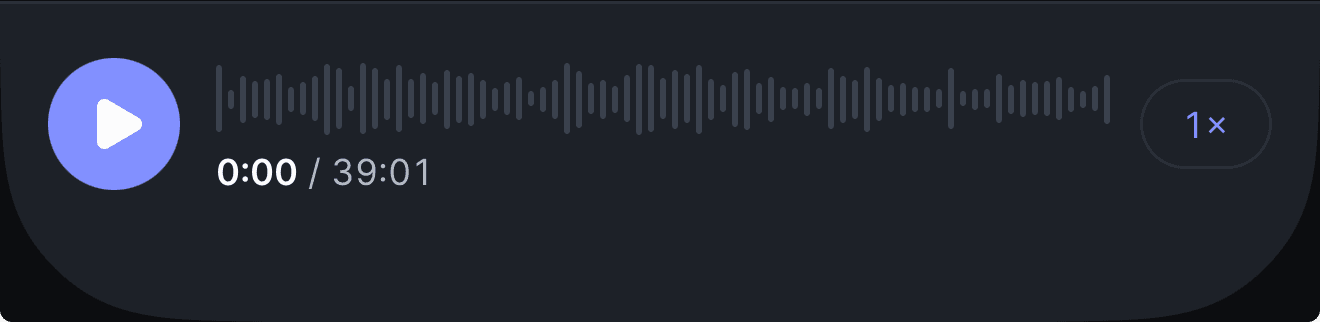
The mobile audio player — tap the 1× on the right.
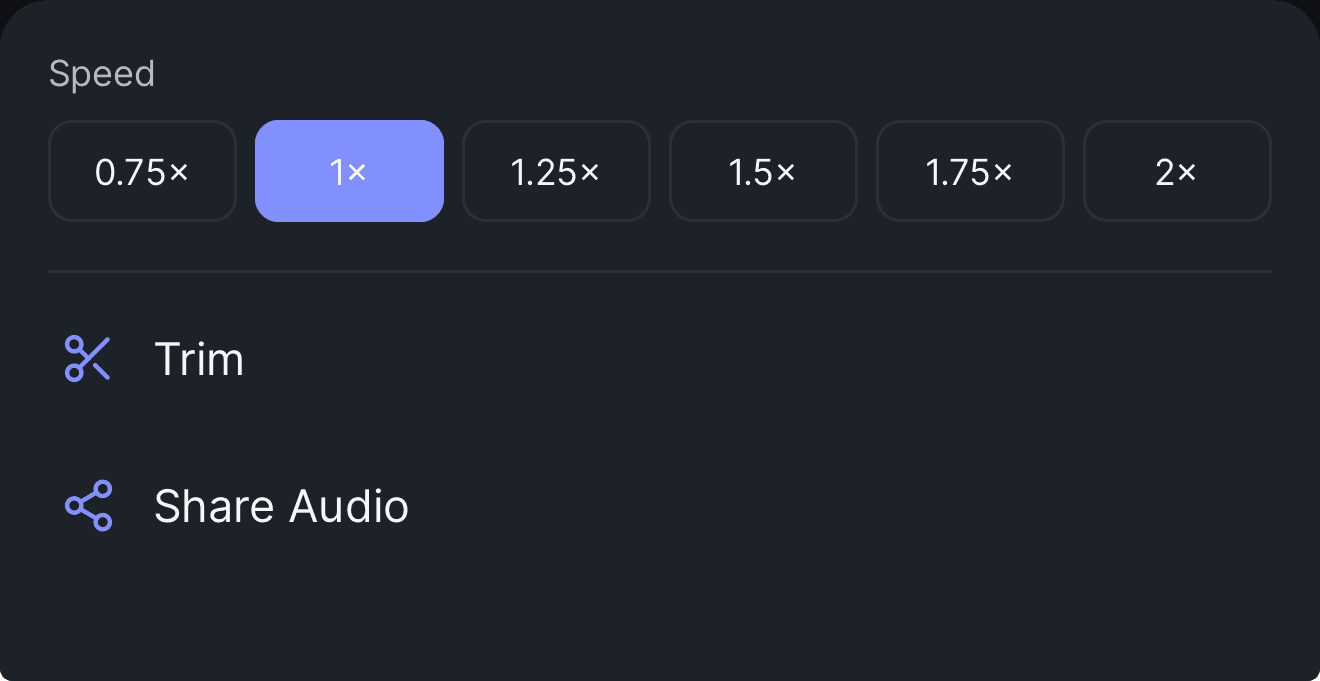
The menu it opens, with playback speed, Trim, and Share Audio.
Trimming: making the cut
The editor works like the one in QuickTime or Voice Memos. You're selecting what to keep; everything outside the selection goes.
- Drag the handles at either end of the strip. The label underneath tracks the maths — for example, keeping 42:10 · removing 3:24.
- Preview plays only the part you're keeping, so you can check the edges before committing.
- Drag anywhere on the strip to move the playhead. On a long recording, scrub to the exact spot and tap Start here or End here to snap a handle to it.
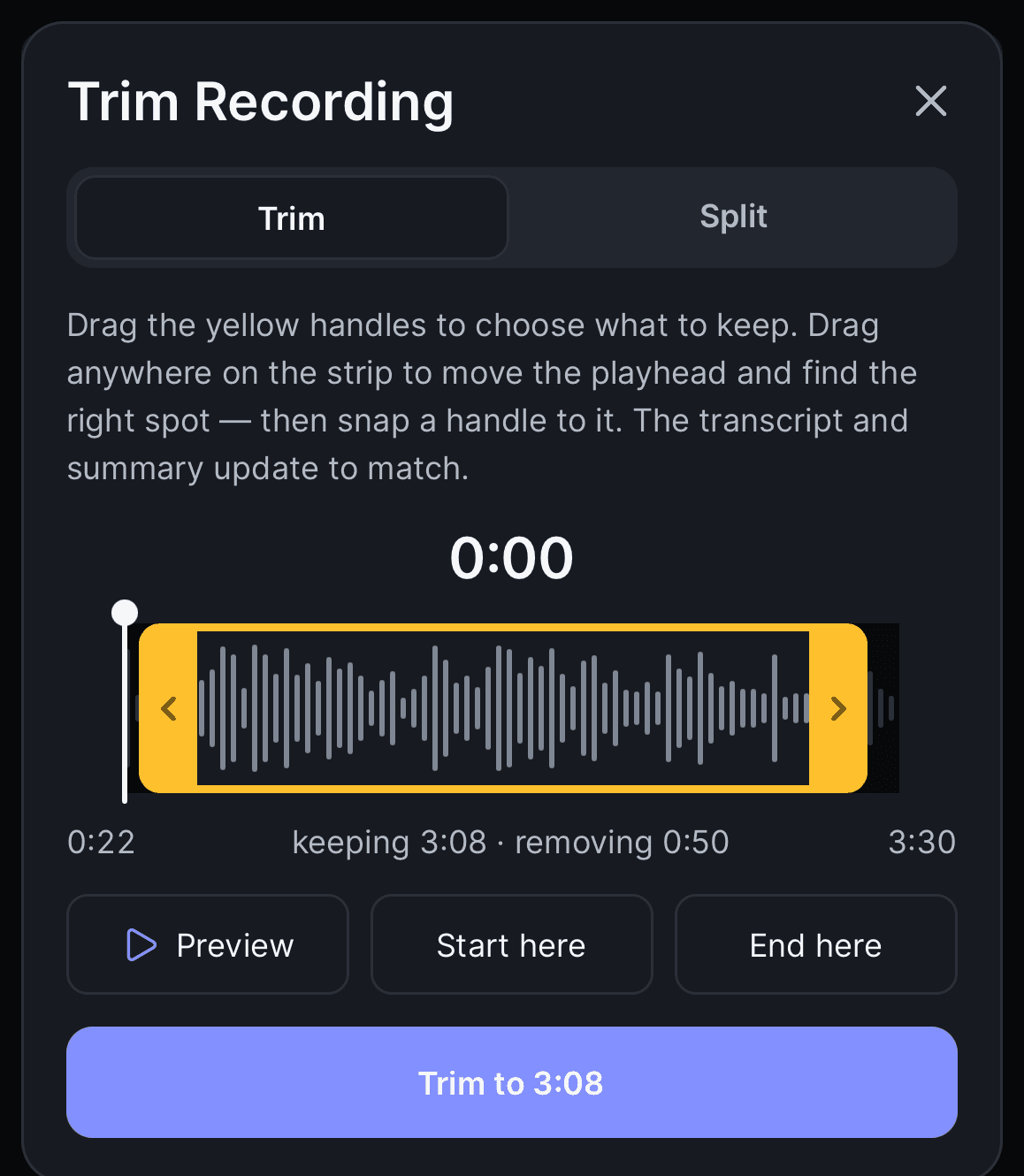
Trim mode — the yellow frame is what you keep, and the label under the strip tracks the maths as you drag.
When the selection looks right, tap Trim to 42:10 (or whatever you're keeping) and confirm. The session goes back into processing while Wave re-cuts the audio, rebuilds the transcript, and writes a fresh summary.
The selection is one continuous range, so you can cut from the start, the end, or both — but not a chunk out of the middle. To remove the middle instead, use Split.
Splitting into two sessions
Split turns one recording into two. This session keeps everything before the split point — along with its title, share links, folders, and chat. Everything after it becomes a brand-new session titled "… (Part 2)", dated to the moment its audio began, filed into the same folders, with a transcript and summary of its own half only.
- Switch the toggle to Split.
- Drag anywhere on the strip to move the split point — the audio follows as you drag, so you can hear exactly where the cut lands.
- Preview plays from a few seconds before the divider, so you hear the end of part one cross into part two.
- Tap Split at 42:10 (or wherever the divider sits) and confirm with Split recording.
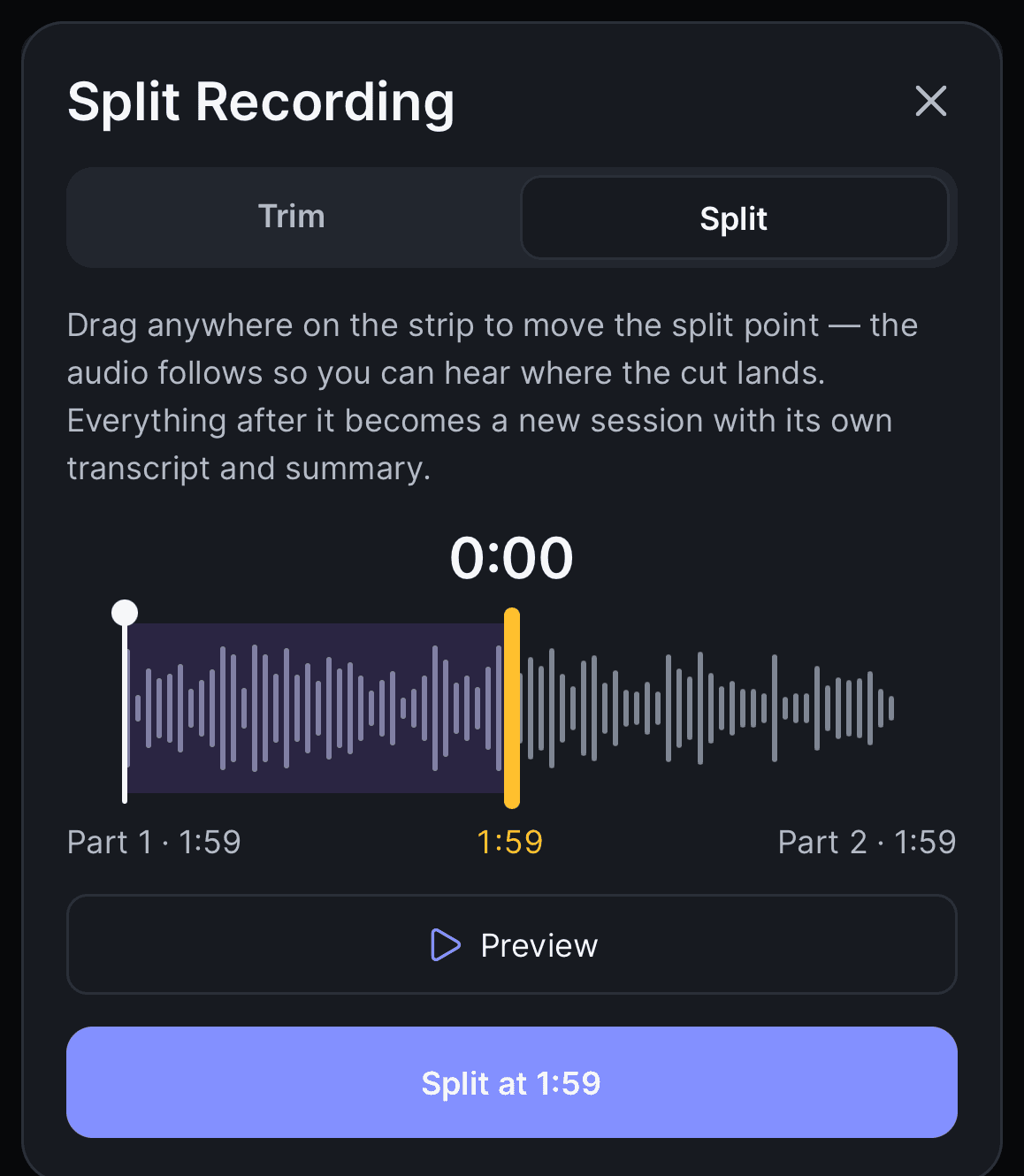
Split mode — everything left of the divider stays in this session; everything right of it becomes Part 2.
Both sessions process for a minute or so, and each comes back with a summary covering only its own audio.
Each side needs at least 5 seconds of audio and some speech in it, and video sessions can't be split.
Undoing a trim or split
Wave keeps a snapshot from just before each edit.
A Trimmed · Undo pill (or Split · Undo after a split) appears near the top of the session. Tap Undo, then confirm with Restore original recording. The same option is at the bottom of the editor.
Undoing a split restores the full recording to this session and moves the Part 2 session to Recently Deleted. Edits stack, and each undo steps back exactly one — most recent first.
FAQ
The editor needs a plain audio recording that's finished processing. It doesn't appear on sessions recorded as video, on a session sitting in Recently Deleted, or while a session is still being transcribed or summarized — and on iPhone and Android it's hidden for podcast imports too. Wait for processing to finish and check again.
No. Public links, chat history, and exports stay with the original session, which now covers just the first part. Part 2 starts private — share it separately if you want to.
Yes. A published public link serves the trimmed audio and the updated summary. Exports and emails you already sent are unaffected — re-export if you want the trimmed version.
No. Summaries are regenerated from the new transcripts, so hand-edits made in summary editing are replaced. Trim or split first, then edit.
Yes. Both are available on every plan.
Was this article helpful?
Still need help?