Adding Photos and Screenshots to Your Recordings
Attach whiteboards, slides and screen grabs to a recording — Wave describes each one and works it into your summary.
Some things never make it into the audio: the slide nobody read out, the diagram on the whiteboard, the figure on a handout. Capture them while you record and Wave analyzes each image, stamps it with the moment it was taken, and uses it when writing your summary.
Capture during a recording
Start a recording. In the Session tools row, tap Photo.
The camera opens with Add Photo at the top and Tap to take photo or use gallery icon above underneath. Pinch or use the plus and minus buttons to zoom.
Press the shutter to take the shot, or tap the images icon in the top right to pick something from your photo library instead.
The camera closes right away and the photo uploads in the background — you never lose recording time. A strip of thumbnails appears below the tools, each stamped with how far into the recording it was taken, and a badge on the Photo tool counts how many you've attached.
Allow camera access the first time you're asked. On iPhone, Wave also asks for photo library access so it can save a copy of each shot to your camera roll — decline it and you can still take photos for the session.
What Wave does with them
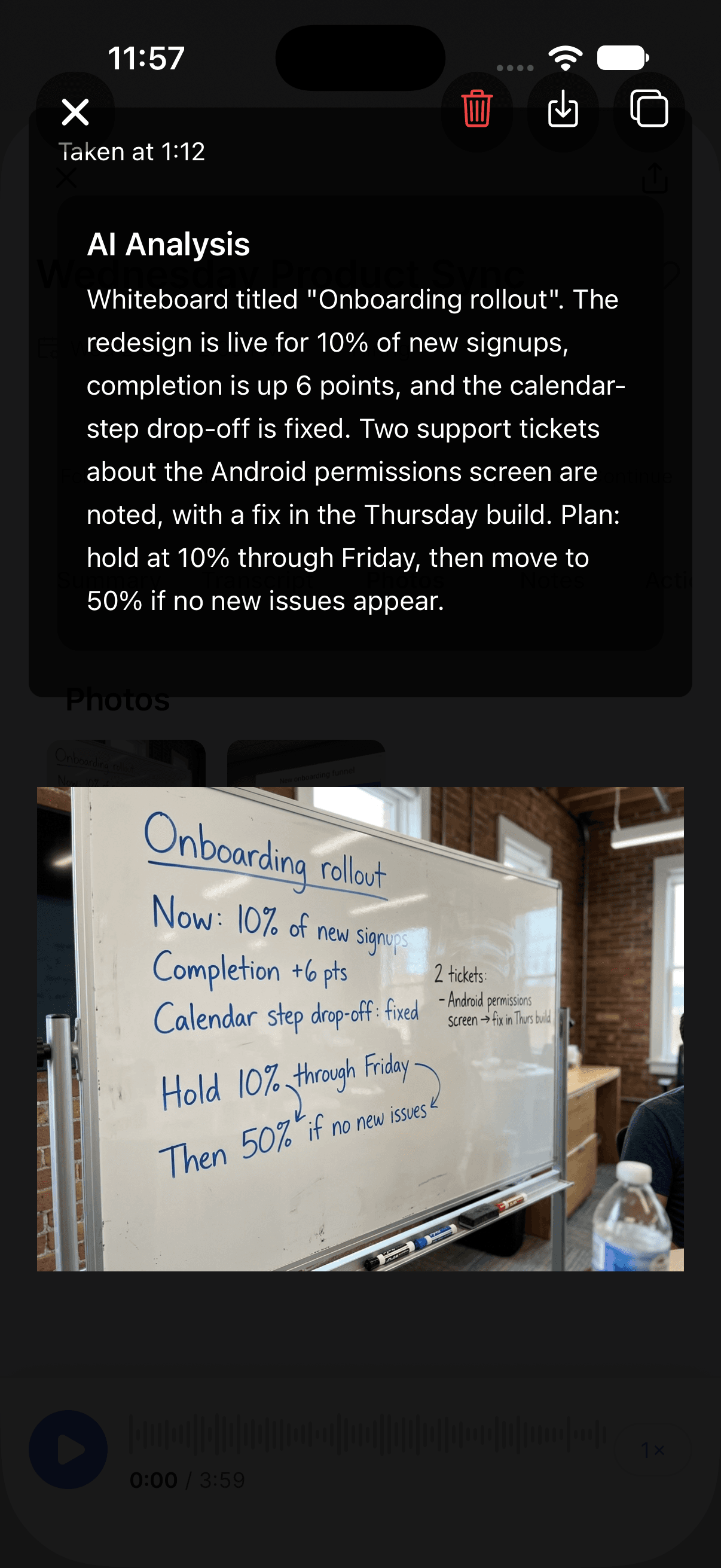
Every image goes through an AI analysis pass that writes a description of what's in it — text on a slide, the structure of a chart, what's written on the whiteboard. Open a photo and you'll see it: AI Analysis on your phone, Image Analysis on web and desktop.
Those descriptions are then handed to the AI that writes your summary. When a session has images, the summary can carry an Images section covering the key visual points and why they mattered. Snap the slide titled Q3 Targets and you're much more likely to see those numbers in the summary.
Analysis takes a moment, so a freshly captured photo may show without its description at first.
Find photos later
Open the session and pick the Photos tab — it appears only on sessions that have images. Each thumbnail shows how far into the recording it was taken.
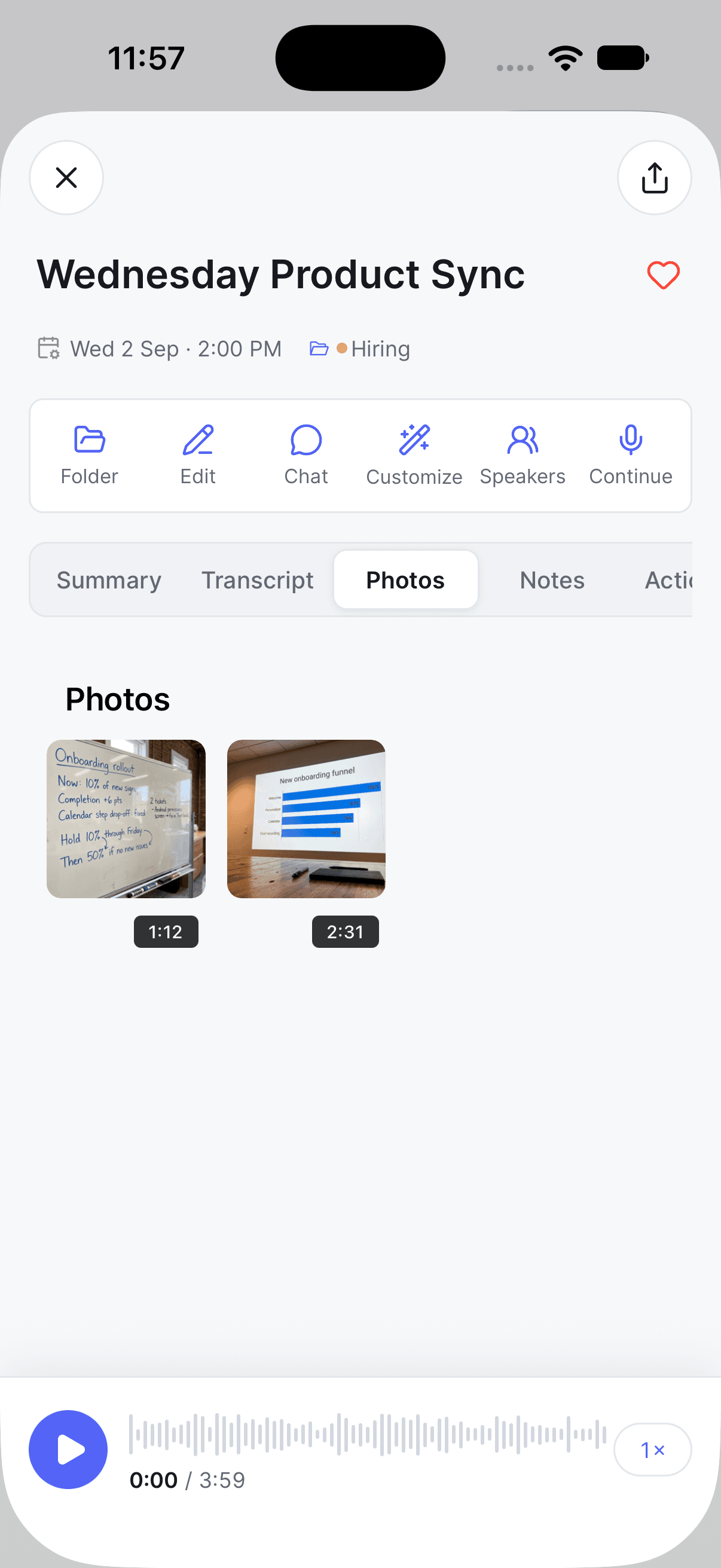
Tap a thumbnail for the full-size view with AI Analysis above it, plus buttons to delete the photo, save it to your device, or copy the analysis text.
Images sync with the rest of the session, so a photo taken on your phone shows up on desktop and web without you doing anything. See using Wave on multiple devices.
Deleting a photo
You can delete a photo from the Photos tab on any platform, or during the recording itself. Wave confirms first — deleting can't be undone.
If the session already has a summary, Wave then offers to regenerate it: The summary may still reference the deleted photo. Regenerate it now? Say yes and it rewrites the summary without that image. Delete several in a row and you're only asked once, at the end.
FAQ
No. Photos are captured during a recording — on your phone with the Photo tool, on desktop with Screenshot. Once the session is finished you can view and delete images, but not add new ones.
Anything the microphone can't pick up: slides and charts, whiteboards, printed handouts, letters and forms, a screen someone's sharing. Text-heavy images work particularly well, because the analysis reads them.
Sharing and exporting cover the summary and transcript — what your images contributed arrives through the summary. See sharing and exporting for what each format includes.
Was this article helpful?
Still need help?