Taking Notes During a Recording
Type your own notes while Wave records — they're saved on the session and fed to the AI when it writes your summary.
Wave captures the audio; notes capture everything audio misses — a decision you want flagged, a name on a badge, your own read on the room. Anything you type is stored on the session and handed to the AI along with the transcript, so your notes influence the summary you get back.
Take notes while recording
Start a recording.
In the Session tools row, tap Notes. A notepad slides up over the recording screen with the running timer at the top, and the placeholder reads Take notes here....
Type as much as you want, then tap Done. Closing the notepad is what saves your notes to the session.
Reopen Notes as often as you like during the recording — your text is still there. Once a session has notes, the Notes tool stays highlighted so you can see at a glance that something's in there.
Taking notes never interrupts the recording. On both platforms the timer keeps counting and audio keeps being captured while the notepad is open.
Your notes shape the summary
When Wave generates a summary, it sends your notes to the AI alongside the transcript with an instruction to work in anything relevant. That makes notes a useful steering tool, not just a scratchpad:
- Flag the moment that matters — Big decision at 09:10: going with option B.
- Record what the mic can't hear — who was in the room, what was on the whiteboard, which slide they skipped.
- Leave your own follow-ups — send Petra the draft by Friday.
If you'd rather change the shape of the summary itself, that's a different control — see Customize Summary.
Find and edit notes afterwards
Open the session. If it has notes, a Notes tab appears alongside Summary and Transcript — sessions without notes don't show the tab. On mobile the tab is read-only; edit the text on web or desktop.
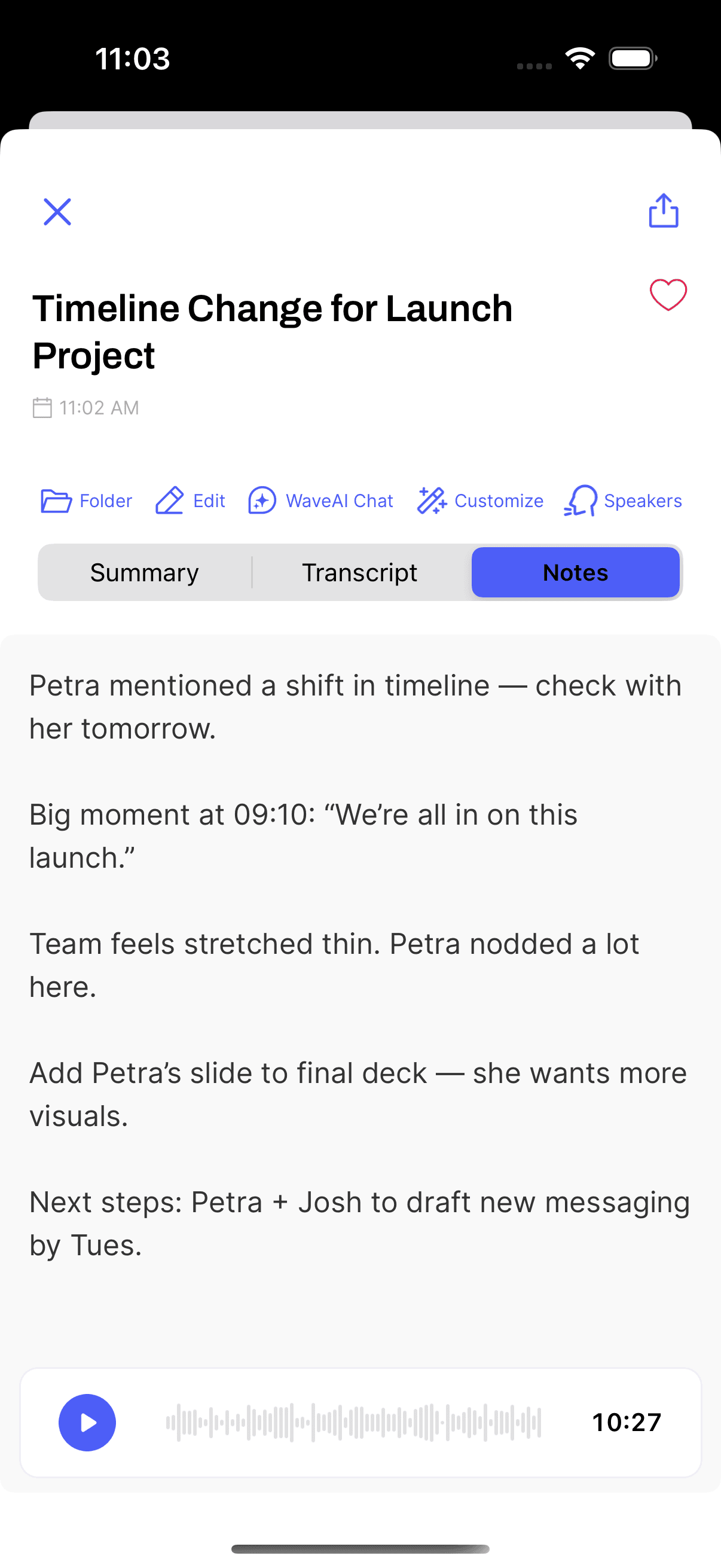
Notes live on the session itself, so they follow you across devices — jot them on your phone in the meeting, tidy them up on desktop or in the web app afterwards.
FAQ
Not on its own — the summary was already written by then. Regenerate it and Wave picks up whatever is in the Notes tab at that moment: use Customize on the session to produce a fresh summary that includes your notes.
No. Notes sit alongside the transcript and summary as a separate part of the session. Nothing you type changes the transcript — for that, see editing summaries and transcripts.
The in-recording notepad belongs to recordings you start on your phone or on desktop. For a call or a bot-recorded meeting, add the notes to the session afterwards from the Notes tab on web or desktop.
Was this article helpful?
Still need help?