Wave for Mac, Windows & Linux
Record everything you hear and say with the Wave desktop app on Mac, Windows, or Linux — with no bot joining your calls and no limit on recording length.
The Wave desktop app records everything you hear and say on your computer — your microphone plus the audio playing through your speakers — then transcribes and summarizes it automatically. It's how you record a Zoom, Google Meet, or Teams call without a bot joining, and there's no limit on how long a recording can run.
Install and sign in
Download it at app.wave.co/desktop/download. It runs on macOS 12+, Windows 10+, and Linux (beta: x64 or ARM64, as an AppImage or DEB).
Open the downloaded disk image and drag the Wave icon into your Applications folder. Launch it from the disk image or your Downloads folder instead and Wave asks "Move Wave AI to the Applications folder?" — click Move to Applications, because automatic updates can't install from anywhere else.
Then click Sign in with Wave. Your browser opens the normal Wave login and hands you back to the app — there's no separate desktop password. Use the same account as your phone and everything you've already recorded is there. See using Wave on multiple devices.
Record
Wave records every enabled source at once — one or more microphones plus System Audio — and mixes them into a single recording. If nothing is arriving, the header reads No input detected — check audio sources. Switching sources on and off, and the permissions macOS asks for, are covered in desktop audio setup.
Cancel recording throws the audio away, and asks first: "Are you sure you want to cancel the recording? All recorded audio will be lost."
While you record, you can also:
- Type into Take notes while you record… — notes save as you go and land in the session's Notes tab. See taking notes during a recording.
- Click Screenshot for a full-screen grab, or open its menu and choose Capture area to drag out a region. Shots attach to the session's Photos tab. See adding photos to your recordings.
- If a calendar event is running, Wave shows it with Use calendar name and a Guests for email follow-up list — check attendees to email them the summary when you stop. See Wave guests.
Closing Wave, the tray, and the mini window
The close button hides Wave to the macOS menu bar, or to the system tray on Windows and Linux — it never ends a recording. The first time it happens you'll get a "Wave is still running" notice.
Click the Wave icon there to bring the window back. Right-click it for Open Wave, Quit, and — while a recording is running — Stop Recording. Quit mid-recording and Wave stops you with a "Recording in progress" dialog offering Stop recording & quit or Cancel.
For a smaller footprint, open your avatar menu and choose Mini window — an always-on-top controller you can drag anywhere, with the timer, the status (Ready, Recording, Paused, No input), stop, Cancel recording, Take screenshot, Capture area, and Expand to main window. Close the main window mid-recording and it appears on its own.
Launch at login
Turn on Start Wave automatically when you log in to your computer in Settings → General → Startup, and Wave starts in the background, ready for your next meeting. On Linux this adds a desktop autostart entry; for an AppImage it points at the file's current location.
Meeting prompts and reminders
With a calendar connected, a meeting prompt floats up about two minutes before each event, showing the event title (or Upcoming Meeting) and its time, or Starting now once it begins. The button reads Join Meeting when the event has a link — it opens the link and starts recording — and Record when it doesn't. Close it with the X, or leave it: it clears itself after two minutes and appears once per event. Connecting a calendar also unlocks the Wave meeting bot — see connect your calendar and recording calendar meetings.
Wave also nudges you when another app is using your microphone and Wave isn't recording (Mac and Windows only), and when a recording goes quiet for a couple of minutes. Both live in Settings → General → Notifications & reminders.
Your library
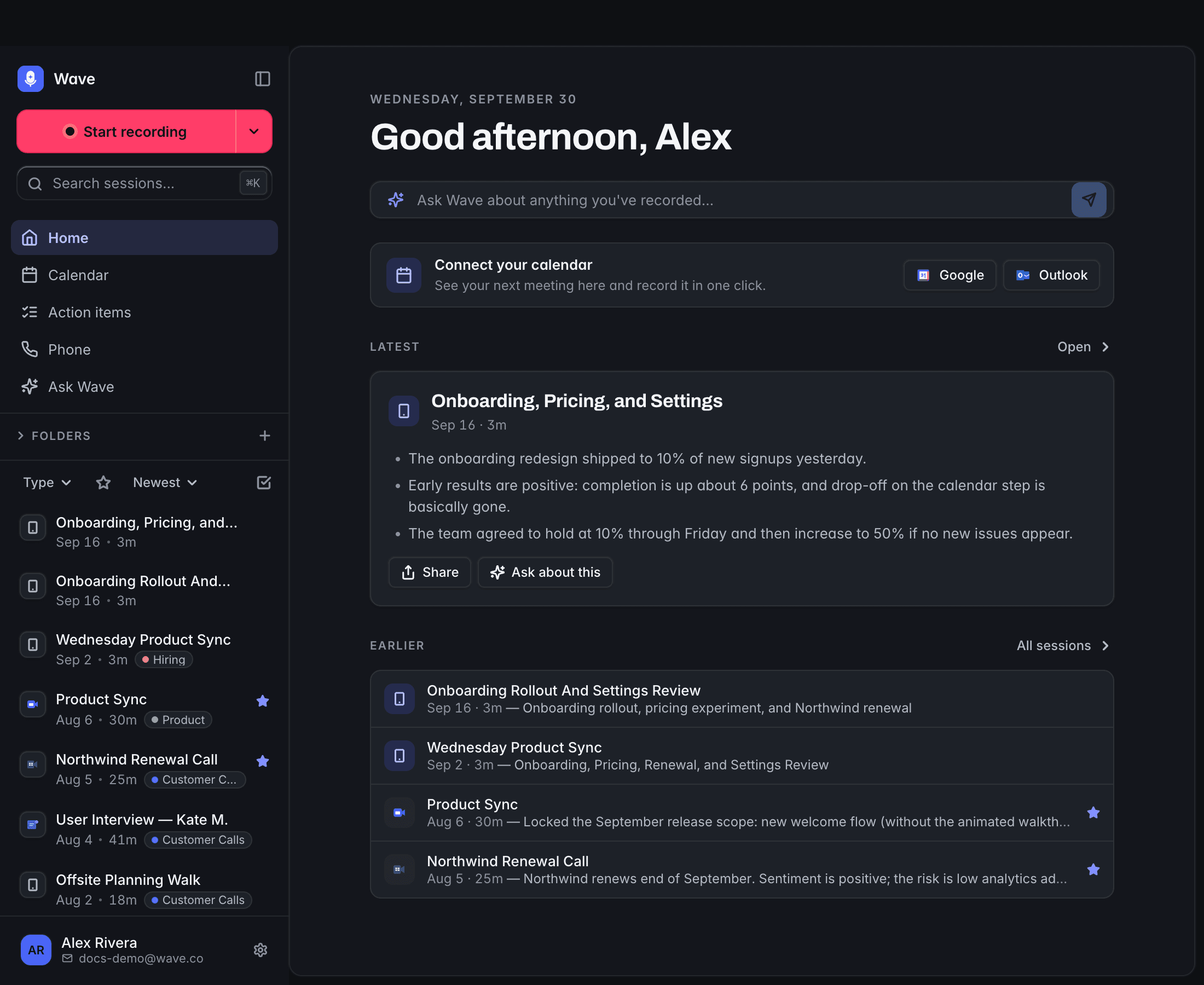
The sidebar holds Home, Calendar, Action items, Phone, Ask Wave, your Folders, and every session you've recorded on any device. Search with Search sessions... (⌘K), sort by Newest first, Oldest first, or Title, and filter by Type: All, Unsorted, Favorites, Mobile, Desktop, Meeting, Phone, Import, or Recently Deleted. The star shows favorites only, and the checkbox icon (Select sessions) lets you act on several at once.
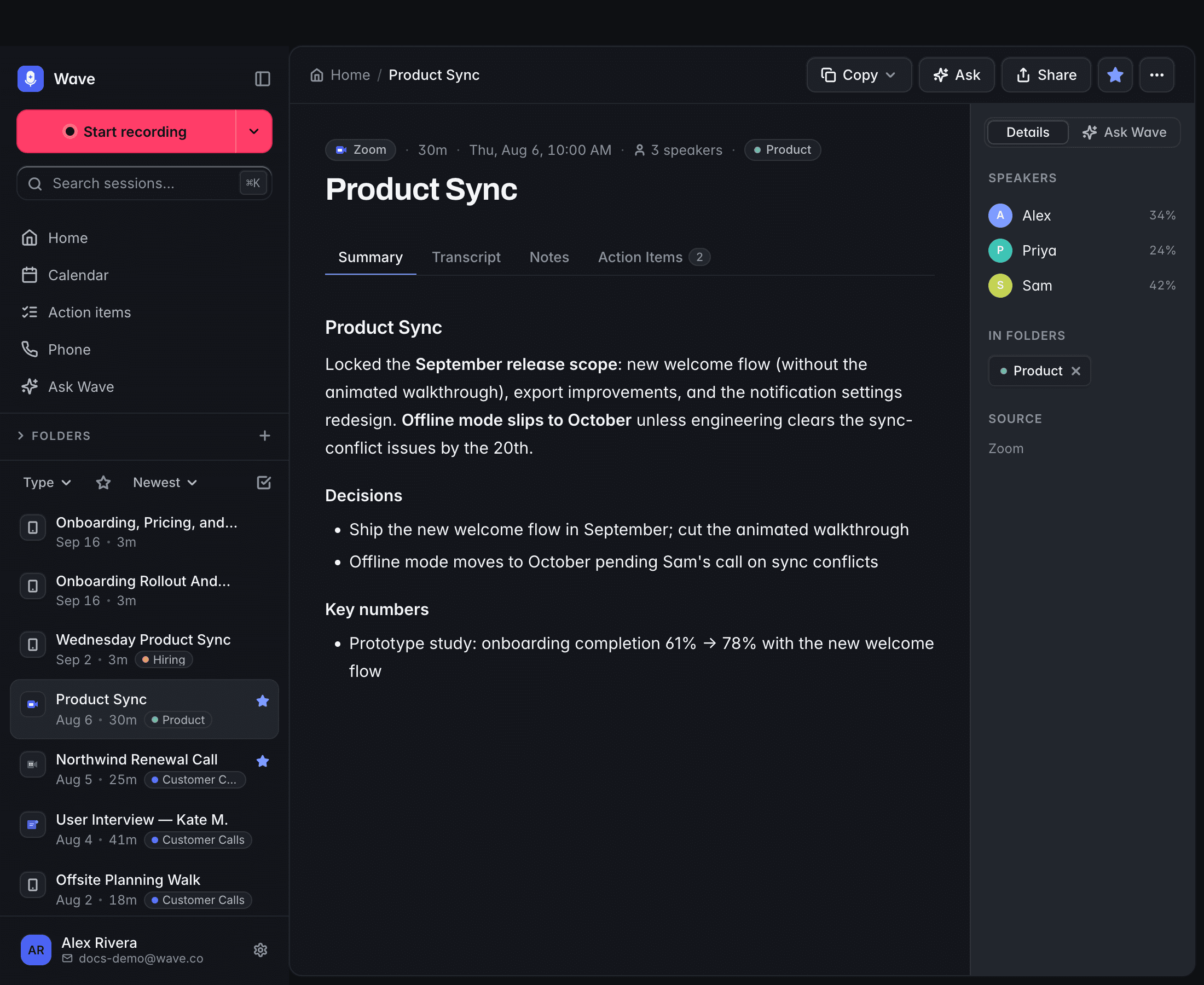
Right-click a session for Open, Add to favorites, Folders, Rename, Share…, or Delete. Inside a session, the ⋯ menu adds Open on Web (opens it at app.wave.co, already signed in), Customize summary, Continue recording, Trim recording, and Download audio.
Settings and updates
Settings has Account, General, Audio, Transcription, Integrations, Recovery, and About tabs. Recovery is where an interrupted recording reappears so you can upload it — see file recovery.
Wave keeps itself current: it checks at launch and every two hours, downloads in the background, and offers Restart Now or Later in an Update Ready dialog. To check by hand, use Check for updates in the avatar menu or on the About tab. On Linux, an AppImage replaces itself in place; a DEB install hands the update to your system package manager, which asks for your password.
FAQ
Yes. Open Audio sources and switch off System Audio. The reverse works too — turn off your microphones to record only what's playing on your computer.
No bot joins the call and nothing is announced — Wave captures the audio locally. Follow the law where you are and tell people you're recording.
Yes. The Phone section dials out from your verified number and records the call. See recording phone calls with Wave.
Was this article helpful?
Still need help?