Recording Calendar Meetings with Wave
Flip a switch on a calendar event and Wave's bot joins the call, records it, and has the summary waiting when you're done.
Once your calendar is connected, every upcoming meeting gets a recording switch. Turn it on and Wave sends a bot into that Zoom, Google Meet, or Microsoft Teams call — it records, transcribes, and summarizes without you doing anything else. If you haven't linked a calendar yet, start with connecting your calendar.
Turn on recording for one meeting
The details sheet also shows your RSVP, the organizer, the attendee list, a Join meeting button, and Open in calendar.
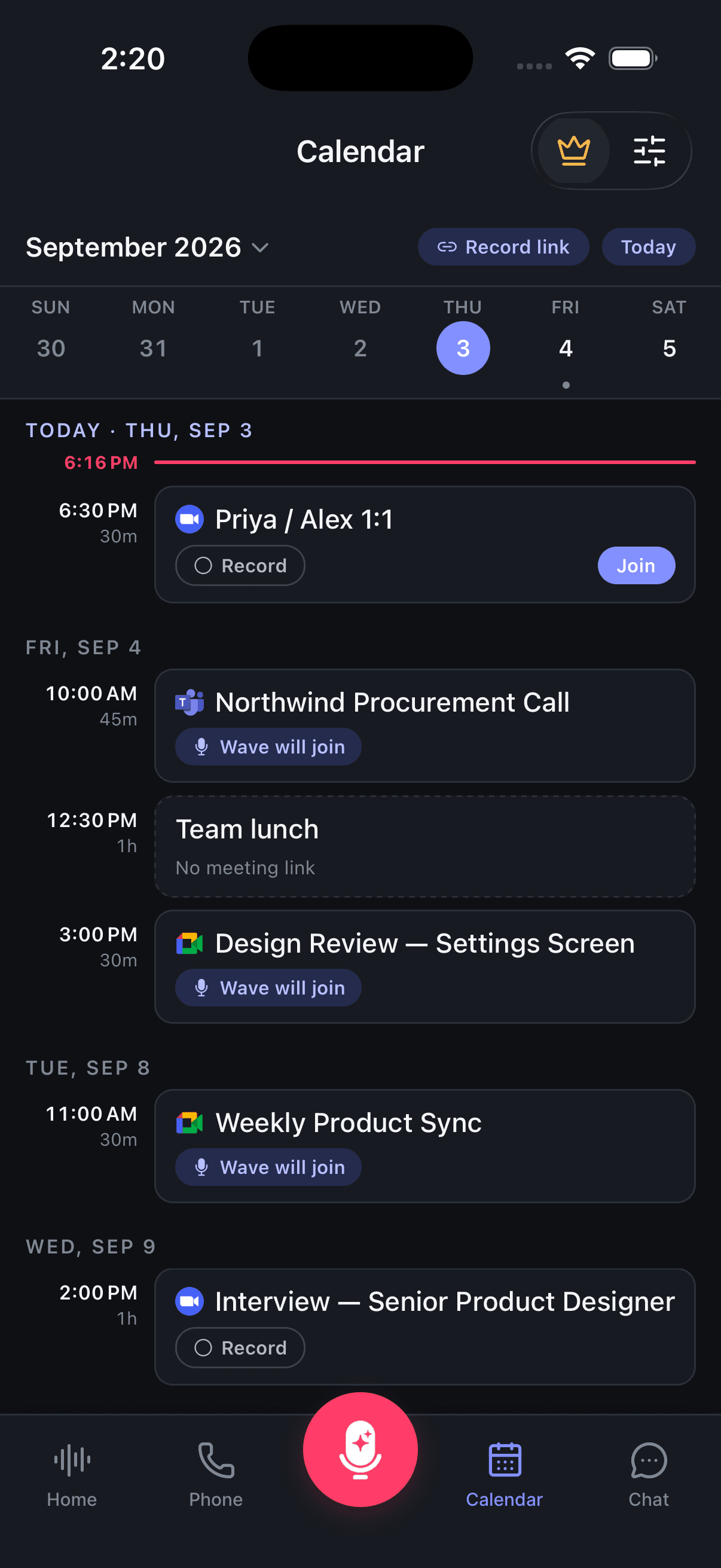
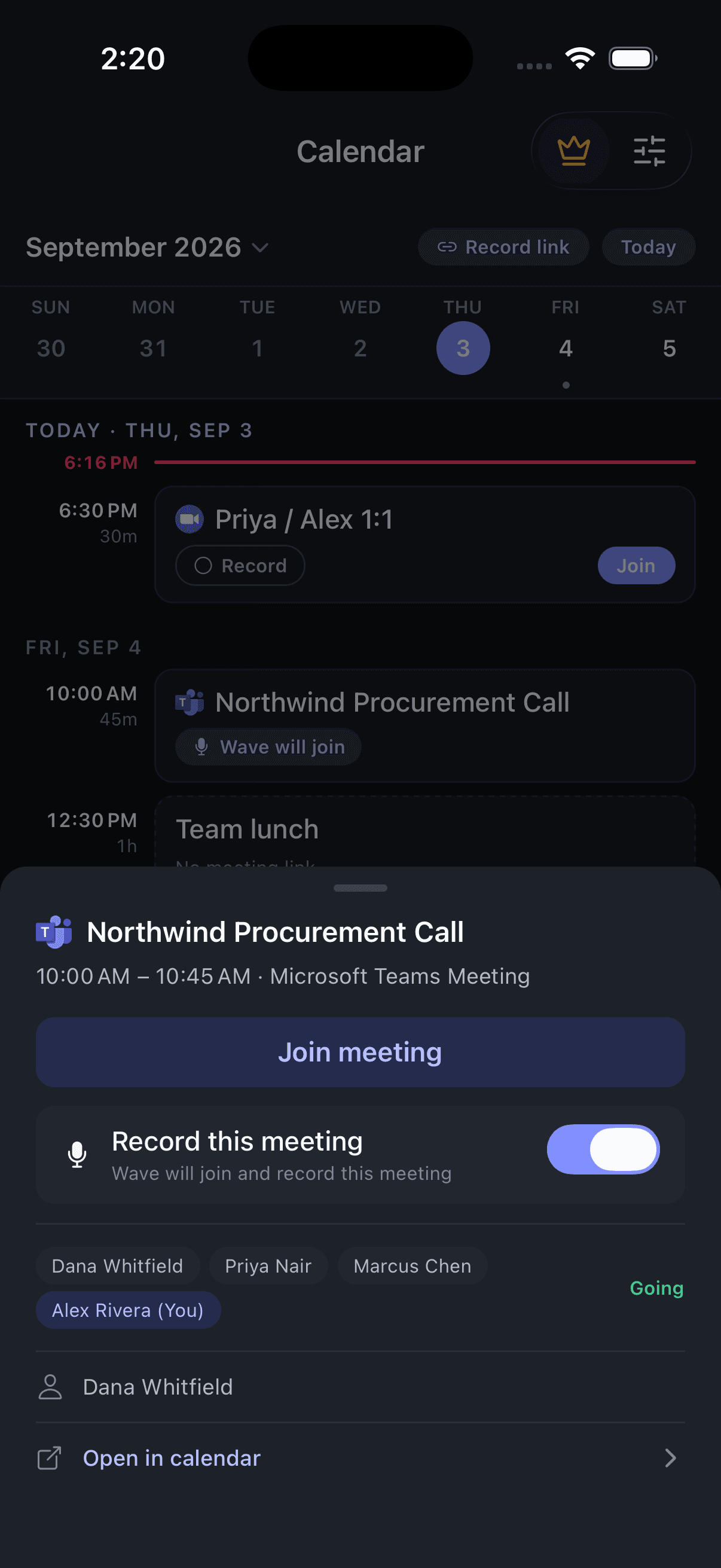
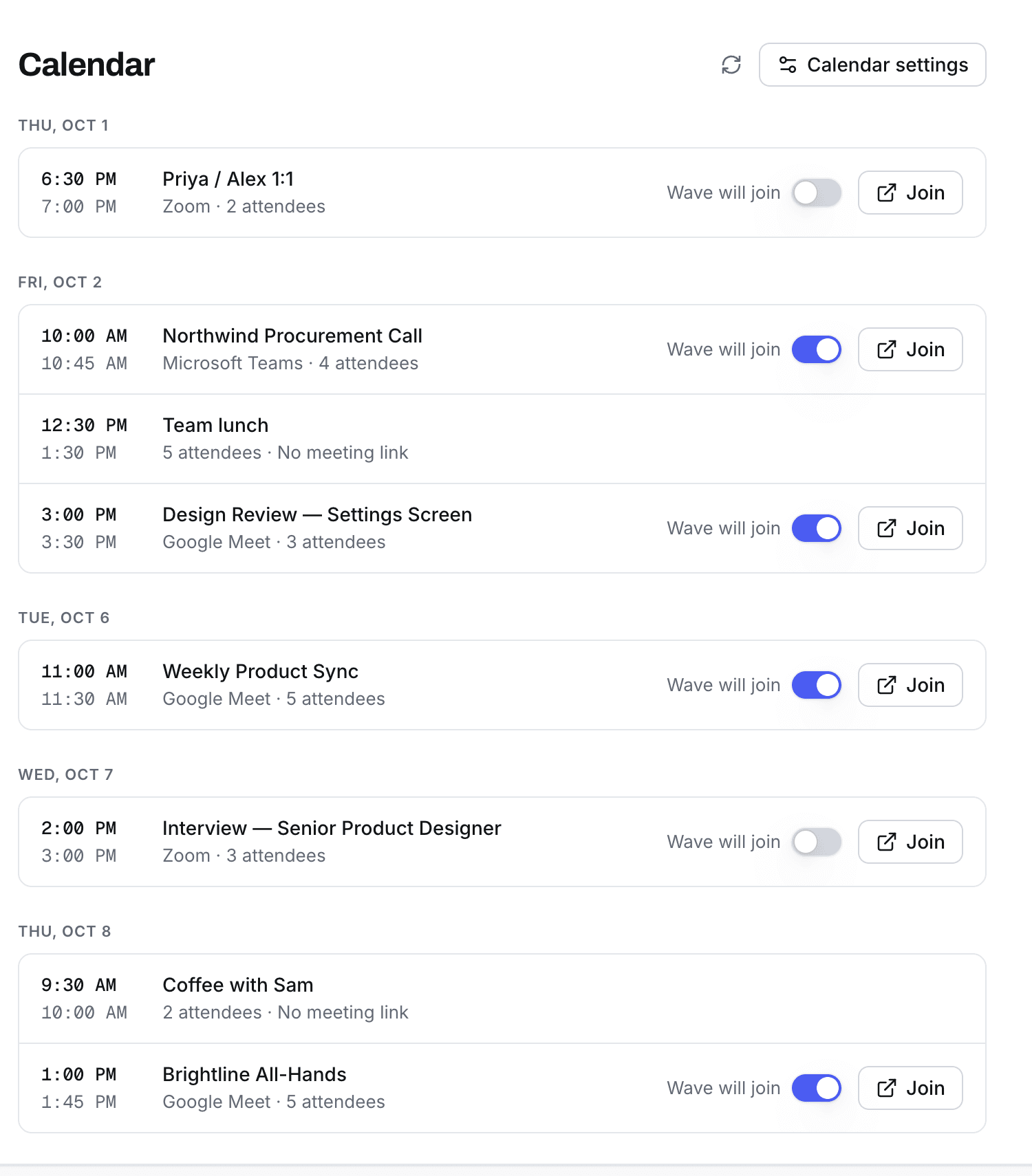
The web Calendar page. Meetings without a link, like a team lunch, get no switch at all.
Events without a supported meeting link get no switch: the phone agenda marks them No meeting link, and the web list simply leaves the toggle off. Record those yourself with the record button instead.
Recurring meetings
Toggle an event that repeats and Wave asks whether the change applies to the whole series.
- On mobile, the prompt is Record this series? — choose This event only or This and future events. Turning recording off asks Stop recording this series? with the same two choices.
- On web, the same prompt offers Just this one and Apply to whole series (or Stop the whole series).
Picking the series option updates every future occurrence at once.
Record every meeting automatically
Rather than toggling one by one, switch on auto-recording and Wave joins everything on your calendar:
- iPhone & Android — Calendar tab, tap the settings icon in the top right to open Recording Settings, then switch on Automatically record meetings.
- Web — Calendar page, Recording Settings, Auto-Record All Meetings.
- Desktop — calendar Settings, Auto-join all calendar meetings.
Events without a usable meeting link are skipped, and Wave flags them with "Wave could not find a meeting link".
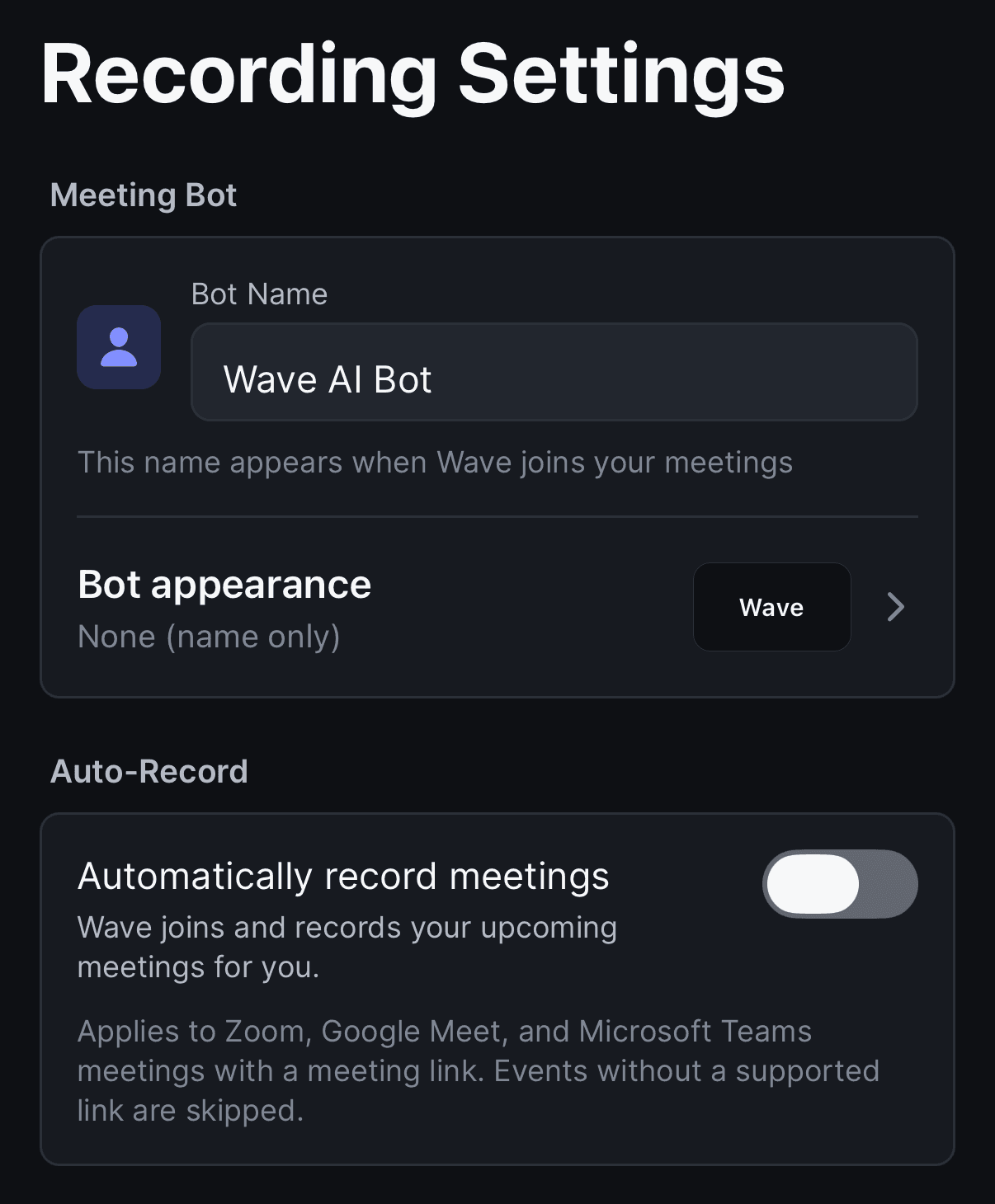
Turning auto-record back off cancels everything you had queued — the phone confirmation counts them for you ("This cancels 3 recordings Wave has scheduled for your upcoming meetings"). That includes meetings you had switched on individually — you'll need to re-enable those.
Change what the bot is called
The bot shows up in the participant list under a name you choose. Set Bot Name and it applies to every meeting Wave joins — "This name appears when Wave joins your meetings."
- iPhone & Android — Calendar tab, settings icon, Recording Settings, Bot Name.
- Web — Calendar page, Recording Settings, Bot Name.
- Desktop — calendar Settings, Bot name, then Save.
Leave the field empty and calendar bots join as Wave AI Bot.
Choose what the bot looks like
By default the bot joins with its camera off — the people in the meeting see its name and nothing else. If you'd rather it show something, Bot appearance ("What people in the meeting see when your Wave bot joins") sets what fills the bot's video tile:
- None (name only) — the default. No video, just the name.
- One of six built-in tiles — Wave logo, Wave light, Recording mic, Taking notes, Recording notice, or Discreet dot. Recording notice is a plain "this call is being recorded" card; Discreet dot is the quietest option that still gives the bot a tile.
- Your image — tap Upload an image and pick a logo, a headshot, or anything else. Use a JPG or PNG under 10 MB. Wave fits it to the widescreen tile, and you choose Fill the frame (crops to fill) or Fit with background (the whole image on a matching background), then Use this image.
Where to find it:
- iPhone & Android — Calendar tab, settings icon, Recording Settings, Bot appearance.
- Web — Calendar page, Recording Settings, Bot appearance.
- Desktop — Settings, Meeting bot tab, Bot appearance.
The choice is saved to your account, so it applies to every meeting the bot joins from then on, whichever device you scheduled it from. Switch back to None (name only) at any time.
Email the notes when the meeting ends
Under Email Notifications you get two switches:
- Send notes to myself — "Get meeting notes in your inbox."
- Send notes to all attendees — "Share notes with everyone in the meeting." Wave reads the attendee list off the calendar event and emails each person the summary once processing finishes; they don't need a Wave account. See Wave Guests.
On desktop the same two settings read Send notes to myself after meetings and Send notes to all attendees after meetings.
If you want a copy of every session in your own inbox — not just meetings — turn on Email under Auto-share. That's the setting that delivers finished sessions to your account email.
Watch the bot while it's in the meeting
On iPhone and Android, a bar slides up from the bottom of the app whenever a bot is live, showing the meeting name, its status, and a running timer. Tap it to open Active Bots, where each one reads Joining Meeting..., In Waiting Room, In Call (Not Recording), or Recording Now.
Tap Stop Bot to pull it out early — "The bot will leave the meeting. Your recording up to this point will be saved."
Desktop reminds you before meetings start
The Wave desktop app also watches your calendar locally. Two minutes before an event starts, an Upcoming Meeting prompt floats over your screen with a countdown. Hit Join Meeting (& record) to open the link and start recording on your computer, Record on its own, or Dismiss. It clears itself after two minutes and stays quiet while you're already recording.
That's a local recording, not a bot joining the call — see Wave for Mac, Windows & Linux.
FAQ
Meeting bots are a paid feature: "An active subscription is required to use meeting bots." Syncing your calendar and seeing your events is free. See plans and pricing.
Admit it the way you'd admit any guest. If nobody lets it in, it gives up and leaves — the same happens if the host removes it or everyone leaves the call.
Your calendar connection expired. The web Calendar page shows a Calendar disconnected banner with a Reconnect button, and mobile flags it on the Meetings tab. Reconnecting restores the event list — then check that the meetings you'd switched on individually still are.
Yes — paste the link instead. See recording any meeting by link.
Was this article helpful?
Still need help?