Siri Shortcuts & the Action Button
Start a Wave recording — or record a call already in progress — by voice, from the Shortcuts app, or with one press of the Action Button.
On iPhone, Wave registers two shortcuts with iOS automatically. From the moment the app is installed they're live in Siri, in the Shortcuts app, and in the Action Button picker — there's no "Add to Siri" step and nothing to turn on inside Wave.
These shortcuts need iOS 17 or later. On iOS 16 they don't appear at all — use the Wave Recording widget or the app-icon quick actions instead.
The two Wave shortcuts
- Start Wave Recording — "Opens Wave and starts a new recording."
- Start Wave Phone Bridge — "Opens Wave and starts a bridge call to record an ongoing phone call." See recording phone calls for how bridge calls work.
Both run immediately when triggered: Wave opens and the recording or bridge call starts, under the same plan and microphone-permission rules as starting one by hand.
Start Wave Phone Bridge dials out using your verified phone number — the same caller ID the Phone tab uses. If you haven't verified a number yet, the shortcut opens the Phone tab but has nothing to bridge from.
Siri phrases
Say "Hey Siri" (or just "Siri") followed by one of these.
To start a recording:
- "Start a new Wave recording"
- "Start Wave recording"
- "Start recording with Wave"
- "New Wave recording"
To record a call already in progress:
- "Start Wave Phone Bridge"
- "Record my call with Wave"
The word "Wave" is in every phrase — that's how Siri knows which app to run.
Assign the Action Button
The Action Button is on iPhone 15 Pro and later.
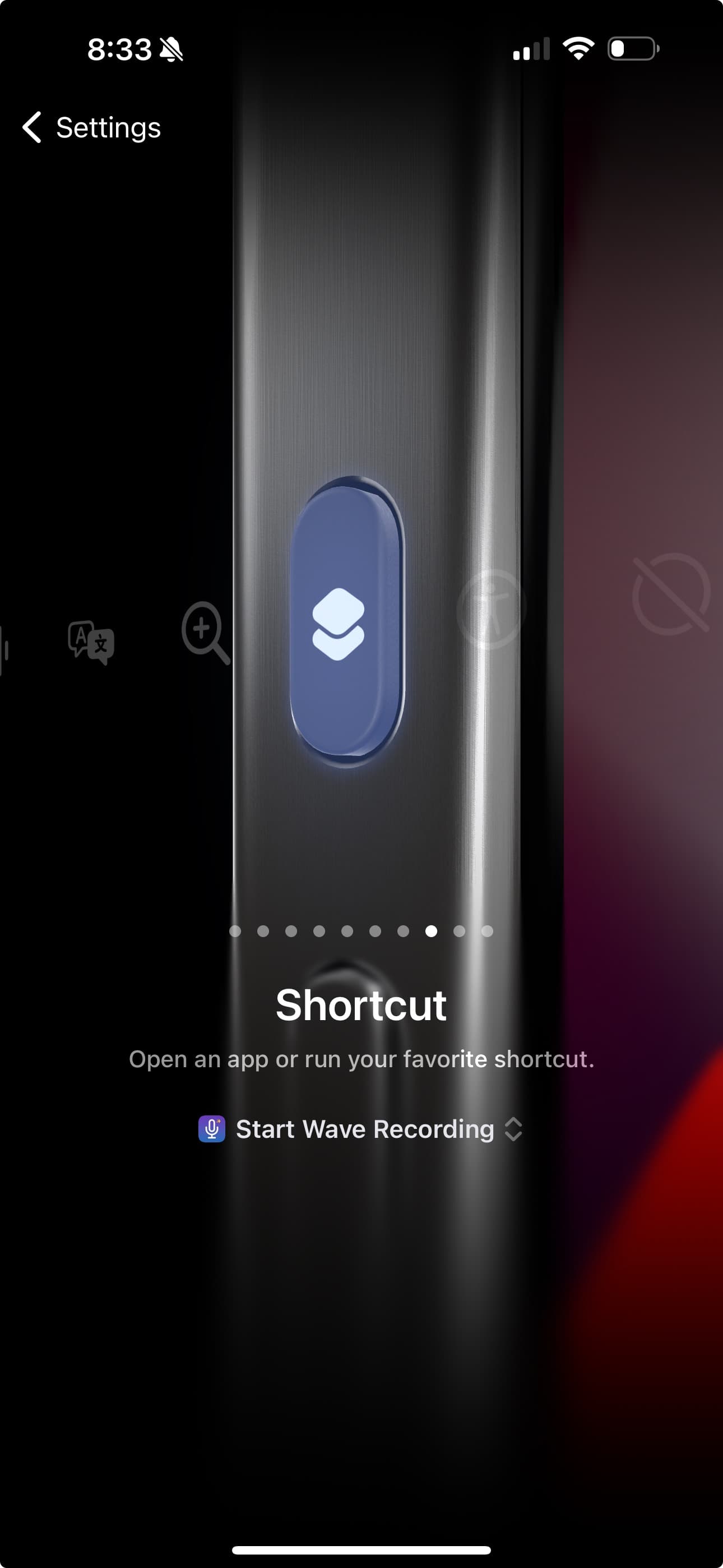
Now a press and hold of the Action Button starts a recording instantly — useful when a meeting kicks off and you don't want to tap through anything.
Find them in the Shortcuts app
Both actions live in Apple's Shortcuts app — search for Wave there. You can also jump to it from inside Wave: open Settings and tap Siri & Shortcuts under Capture Sources. From the Shortcuts app you can run them directly, add them to your home screen, or drop them into your own custom shortcuts and automations.
FAQ
There isn't one anymore, and you don't need it. Wave's shortcuts register themselves with iOS on install, so they're already in Siri and the Shortcuts app.
Check that you're on iOS 17 or later and that you've opened Wave at least once since installing. Include the word "Wave" in the phrase — Siri matches the phrases listed above.
The shortcut follows the same rules as the record button: Wave needs microphone permission (iOS Settings, Wave, Microphone), and your plan needs recording access — see Wave Plans & Pricing. If a recording is already running, the shortcut just brings that one to the front instead of starting another.
Siri and the Action Button are Apple-only. On Android, use the Wave Recording widget or the app-icon quick actions for one-tap recording.
Was this article helpful?
Still need help?