Importing PDFs into Wave
Drop a contract, report, or research paper into Wave and get a structured summary you can search, question, and export.
Wave isn't only for audio. Hand it a PDF — a contract, a board deck, a research paper — and it reads the whole document and writes a structured summary you can search, ask questions about, and export like any other session. PDF import works on your phone and on the web.
The Wave desktop app imports audio only. Import PDFs on your phone or at app.wave.co and the finished session shows up on every device, desktop included.
Import a PDF
From inside Wave
From another app
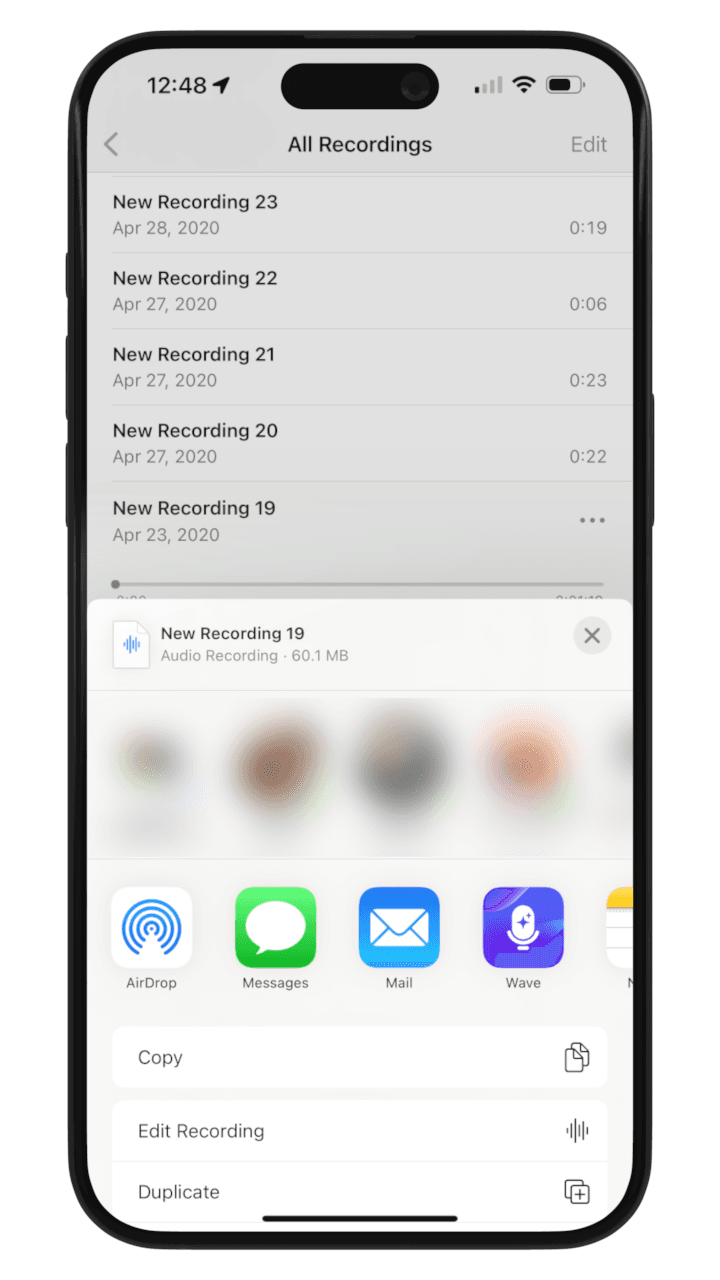
Importing requires an active subscription — see Wave Plans & Pricing. PDFs count toward the same hourly and daily import caps as audio files.
What Wave writes
PDFs get their own summary format, built for documents rather than conversations. Wave produces:
- High-Level Summary — the main takeaways, in 5 to 10 bullets
- Detailed Section-by-Section Summary — a breakdown of each major section
- Key Facts, Numbers, and Dates — statistics, deadlines, and specific data points
- Action Items, Decisions, or Recommendations — when the document contains them
- Notable Quotes or Passages — where they matter to understanding the document
- Entities, Roles, and Stakeholders Mentioned — the people and organizations involved
- Document Quality Notes — anything missing, corrupted, or repetitive that Wave noticed
Wave also names the session from the document's contents, so you don't end up with a library full of filenames. You can rename it if you'd rather. Your title format setting doesn't apply to PDFs.
The summary comes out in your recording language — see Language & Translation to change it.
Reading the result
Open the session and you get two views:
- Summary — the structured breakdown above. Edit it like any other summary, or re-run it in a different style with Customize Summary.
- Transcript — on your phone this shows the original file rendered page by page, with a page count, so you can check anything the summary glossed over.
From there, everything else in Wave works as usual: ask the AI questions about the document, search across it with the rest of your library, or share and export it. Any action items or decisions in the document appear in the summary's Action Items, Decisions, or Recommendations section rather than in the Action items tab.
Tips for good results
- Text-based PDFs work best. If you can select text in the document, Wave can read it cleanly.
- Scanned pages still work, but the text extraction can be noisy — Wave calls that out under Document Quality Notes.
- Structure helps. Clear headings and sections give the section-by-section summary something to follow.
- Check the Transcript tab if a detail looks off, rather than trusting the summary alone.
Imported documents sit alongside your audio imports under Imports in the Source filter on your phone, and under the Import filter in the desktop app. For everything else you can bring into Wave, see Importing Audio and Video Files.
Was this article helpful?
Still need help?