Wave Widgets & Quick Actions
Start a recording from your home screen, lock screen, or app icon — without opening Wave first.
Wave AI gives you two one-tap launchers on both iPhone and Android: the Wave Recording widget for your home or lock screen, and quick actions on the app icon. Both drop you straight into recording instead of making you open the app and find the record button.
The Wave Recording widget
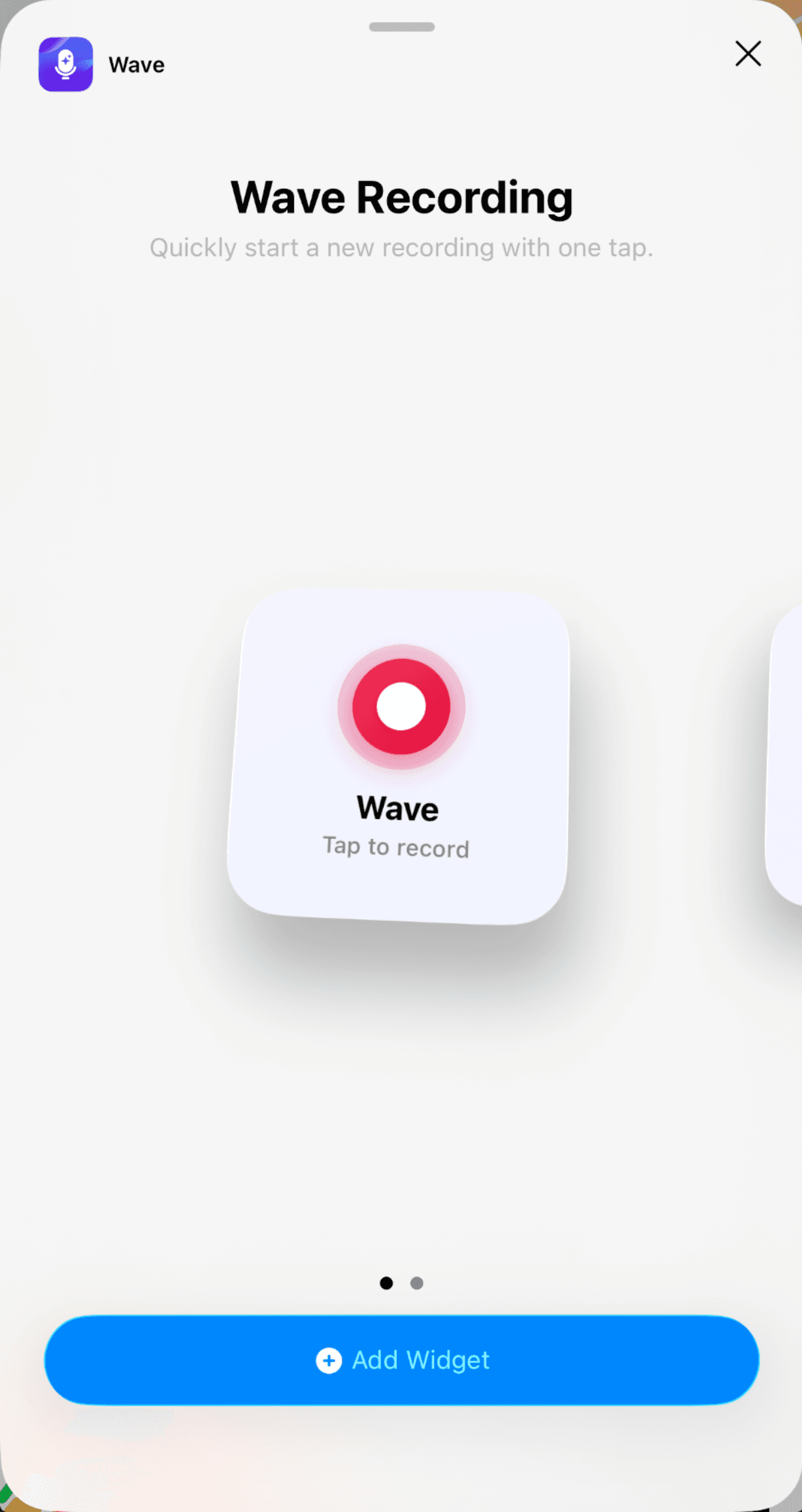
In your phone's widget picker, look for the widget named Wave Recording — "Quickly start a new recording with one tap." When nothing is recording it shows Wave with the hint Tap to record. Tap it and Wave opens and starts a new recording right away.
It's a live widget, not just a shortcut:
- While you're recording, it switches to a Recording label with a running timer that counts up.
- Tapping it during a recording opens your recording in progress instead of starting a second one.
The widget follows the same rules as the record button in the app. If your plan doesn't include recording access, tapping it opens the upgrade screen — see Wave Plans & Pricing. If Wave doesn't have microphone permission yet, it asks for it before recording starts.
Adding the widget
On iPhone the widget comes in two home screen sizes (small and medium) plus two lock screen sizes — a small circular one and a wider rectangular one.
Home screen:
Lock screen:
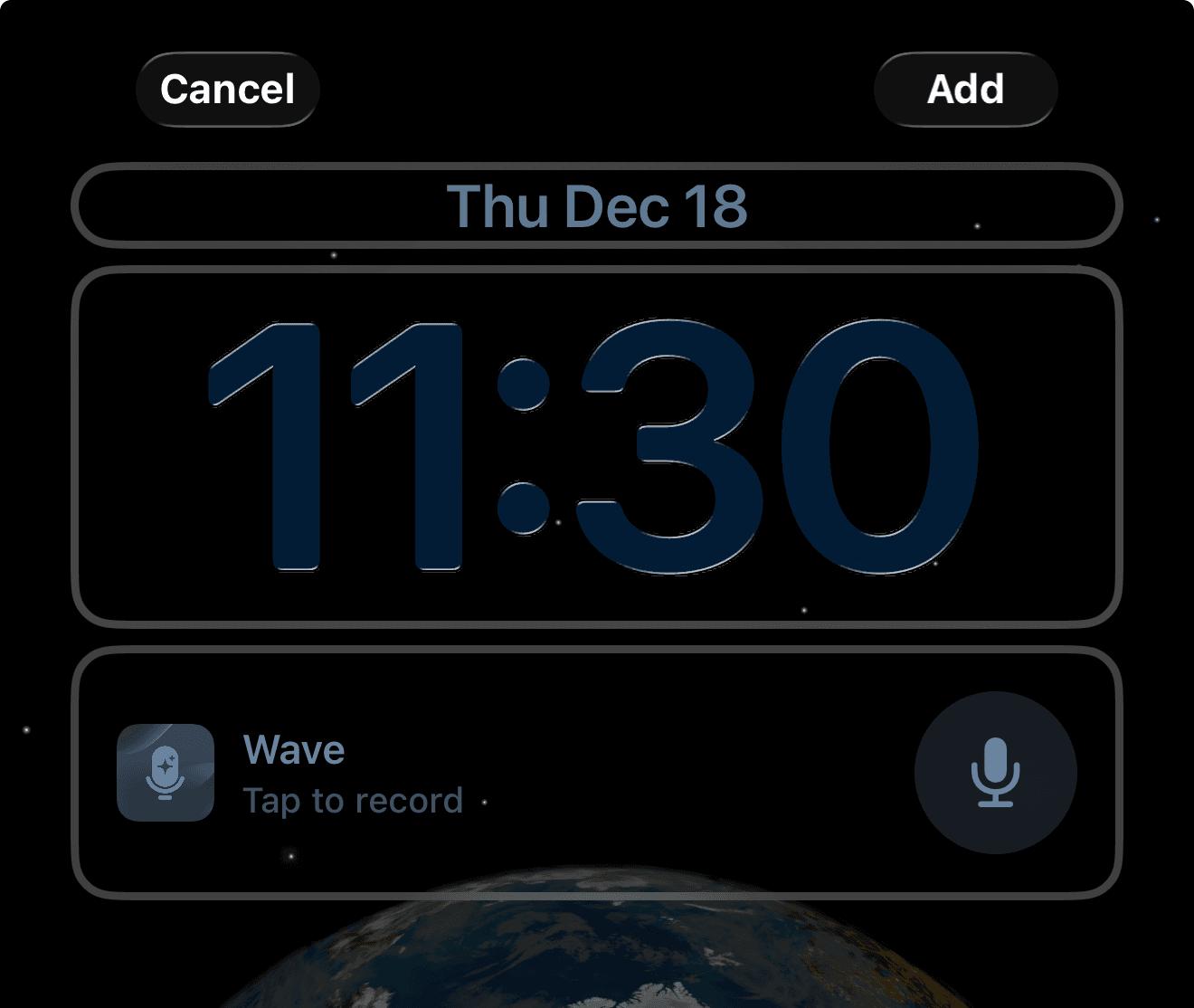
Both home screen sizes and the rectangular lock screen widget show the live timer while you record. The small circular lock screen widget swaps its microphone icon for a record symbol instead — there's no room for a timer.
Depending on your security settings, iOS may ask for Face ID before opening Wave from the lock screen.
Quick actions on the app icon
Touch and hold the Wave app icon and you get shortcuts with zero setup, on both platforms. The labels differ slightly:
- Start Recording — opens Wave and starts a new recording.
- Record Ongoing Phone Call — starts the bridge-call flow for recording a phone call that's already in progress.
- Contact Us — opens support chat.
Which one should you use?
| Launcher | Where it lives | Live recording timer | Also records phone calls |
|---|---|---|---|
| Home screen widget | iPhone and Android | Yes | No |
| Lock screen widget | iPhone; Android where supported | Rectangular size only | No |
| App icon quick actions | iPhone and Android | No | Yes |
Plenty of people use all three — lock screen for speed, home screen for the timer, quick actions for phone calls. If you'd rather go hands-free, iPhone also lets you start a recording by voice or with the Action Button; see Siri Shortcuts & the Action Button.
If Wave Recording doesn't show up in your widget picker, update Wave to the latest version, open the app once so it can register the widget, and check again.
Was this article helpful?
Still need help?