Recording on Your Smart Watch: Apple Watch
Record from your Apple Watch with one tap. Recordings hand off to your iPhone and land in your library transcribed and summarized.
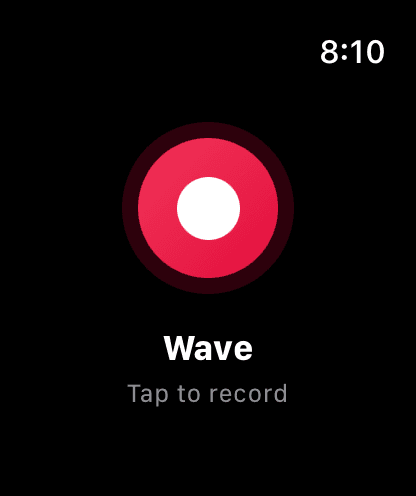
Wave AI on Apple Watch turns your wrist into a record button. Tap once, capture the conversation, and the audio hands off to your iPhone, which uploads it and processes it like any other Wave.
This is the Apple Watch half of Wave on your Smart Watch. For a side-by-side of Apple Watch and Wear OS, see Recording on Your Smart Watch.
What you need
- An Apple Watch running watchOS 10 or later
- Wave installed on your paired iPhone, and signed in
The watch never talks to Wave's servers directly — your iPhone does the upload. That means the watch itself doesn't need Wi-Fi or cellular, but your iPhone has to come online eventually for a recording to reach your library.
Setting it up
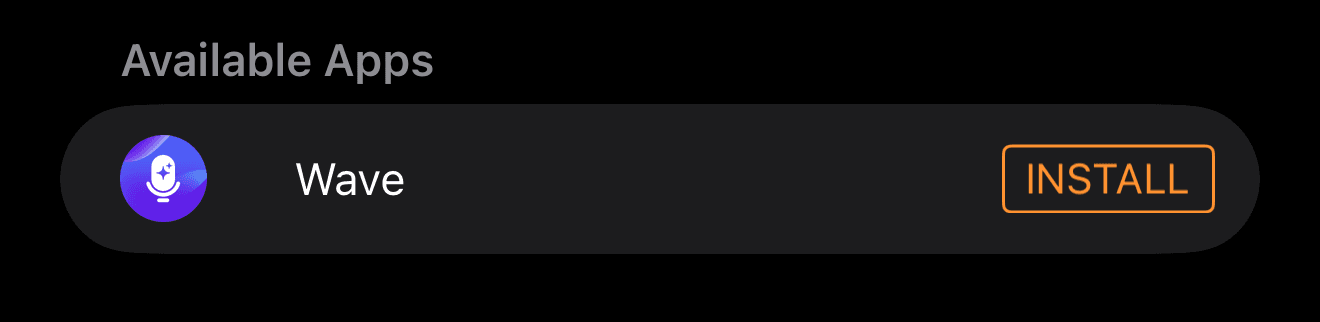
If the watch shows Sign in Required ("Open Wave on your iPhone to sign in"), open Wave on your iPhone with the watch nearby and tap Retry. When your iPhone can't be reached at all, the Retry button is replaced by iPhone not reachable — bring the two devices together and try again.
Recording
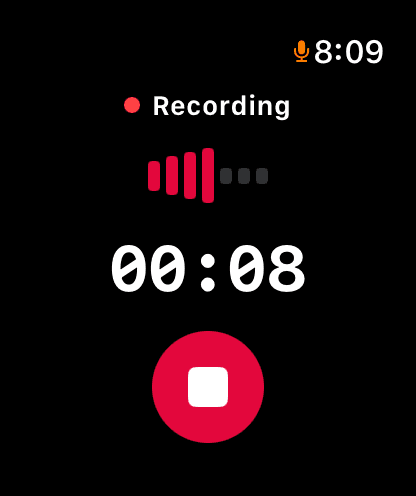
To throw a recording away instead, tap the ✕ button. Wave asks Cancel Recording? — "This recording will not be saved." Choose Discard to delete it or Keep to carry on recording. To take a break, tap the pause button on the right; the status turns amber and reads Paused, the timer stops, and the play button resumes. Paused time isn't counted.
Recording keeps running when the screen turns off, when you lower your wrist, and when you move to another app. If a call or Siri takes the microphone and doesn't give it back within a minute, Wave stops and saves what it captured rather than losing it.
Wave watches your watch battery while recording. At 10% it stops the recording, saves it, and queues it for transfer, so a dying watch doesn't cost you the audio. Wave also checks free space before starting — if there isn't enough, you'll see Not enough storage space instead of a recording.
How recordings reach your library
Every finished recording is queued for transfer to your iPhone. The status sits under the record button:
- Syncing 2 recordings... — the handoff is in progress.
- Synced! — everything on the watch made it across.
- 3 stuck — tap to retry — transfers are stuck. Tap that line to retry them right away.
Once your iPhone has the file it uploads it, and the session appears in your library titled Watch Recording... until transcription and the summary finish. See What Happens After You Record for the rest of that flow.
Recordings wait safely on the watch until they can be sent — nothing is dropped because your iPhone was in another room. The queue is also retried every time you open Wave on the watch and whenever it reconnects to your iPhone, so a stalled transfer often clears on its own.
Adding the Wave complication
Put Wave on your watch face for a one-tap route into the app. In the watch face editor, choose a complication slot and pick Wave ("Quick access to Wave recording"). It works in the circular, corner, rectangular, and inline slots.
The complication reflects what Wave is doing:
- Idle — a microphone icon; the rectangular slot reads Wave / Tap to record. Tapping opens the app so you can start the recording deliberately.
- While recording — a stop icon and a running timer. Tapping it stops the recording.
- While paused — an amber pause icon and Paused with the elapsed time. Tapping it opens the app so you can resume or stop; it never stops a paused recording.
- Waiting to send — when recordings haven't reached your iPhone yet, the rectangular slot shows 2 pending in orange and the circular slot shows a number badge.
Forcing a sync from your iPhone
If the watch is showing stuck recordings and tapping retry isn't clearing them, you can pull from the iPhone side. Go to Settings → Help → Troubleshooting → Sync watch recordings ("Asks your Apple Watch to resend any pending recordings"). Wave asks the watch to re-scan and re-send, then shows a short message: either "Found 2 recordings. Transferring now." or "No pending recordings found on Watch."
These alerts mean the watch couldn't be asked at all:
- Watch Not Available: "No paired Apple Watch found with Wave installed." Check that Wave is installed on the watch (see Setting it up above).
- Watch Not Reachable: "Make sure your Apple Watch is nearby and awake, then try again."
- Couldn't reach your watch: "Failed to contact Watch. Try again."
FAQ
Wave records on one device at a time. When it detects a recording already running elsewhere, the watch shows Recording in progress / on another device with a Refresh button. Stop the other recording, then tap Refresh.
Keep the watch and iPhone close together and awake, then open Wave on the watch and tap the stuck line. If it still doesn't move, use Sync watch recordings in iPhone settings.
Yes — a watch recording is a normal Wave session once it's uploaded. See Wave Plans & Pricing.
No. Use whichever device is closer to the conversation — recording on your phone gives you live captions and in-recording tools the watch doesn't have. Wave keeps everything in one library across devices, as covered in Using Wave on Multiple Devices.
On a Wear OS watch (Galaxy Watch, Pixel Watch) instead? See Recording on Your Smart Watch: Wear OS.
Was this article helpful?
Still need help?