Continuing a Recording
Add more audio to a recording that's already finished — Wave stitches it on and rebuilds the transcript, summary, and action items to cover all of it.
You stopped the recording, the summary came back, and then the conversation picked up again. Instead of starting a second session, Continue adds the new audio to the one you already have. Wave records as normal, joins the new part onto the original, and regenerates the transcript, summary, speakers, and action items so they cover the whole thing. The session keeps its title, its date, its folder, its share links, and its chat history.
Continue a recording
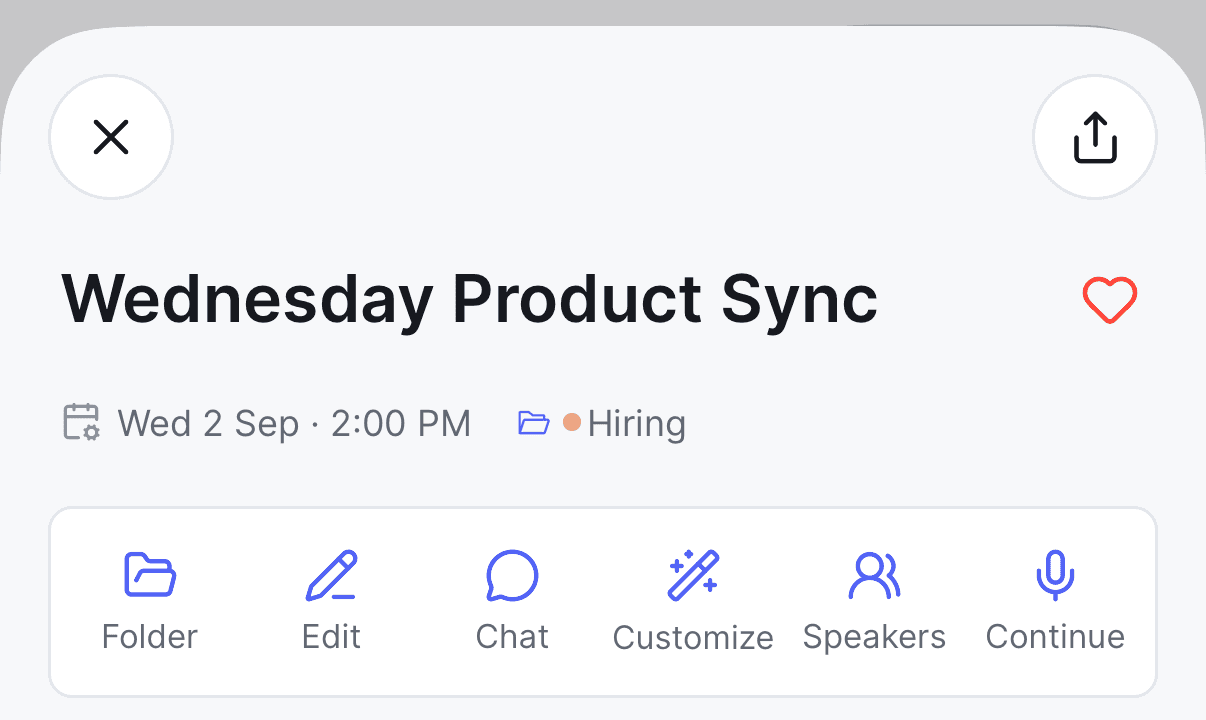
Open the recording. In the row of action buttons under the title, tap Continue — it's the last button.
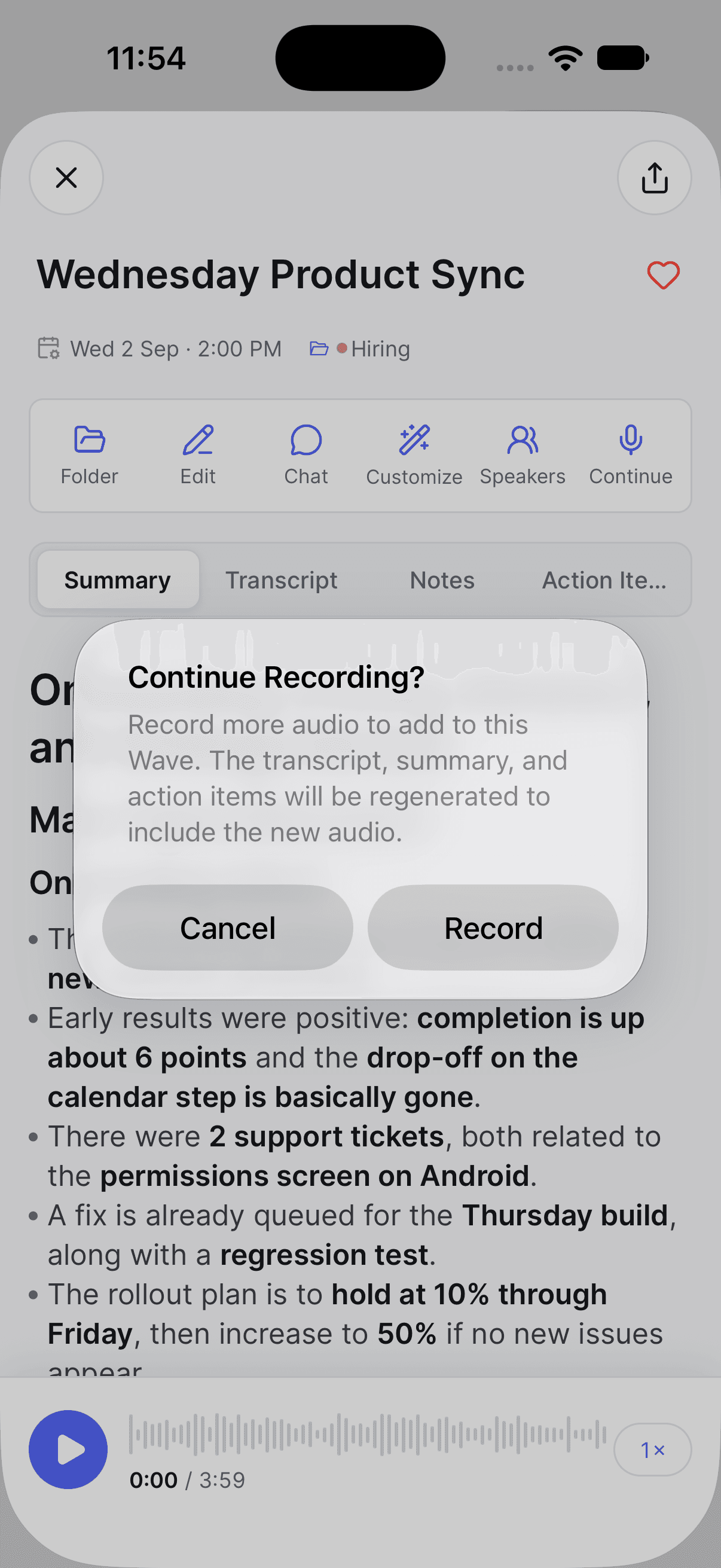
Confirm at Continue Recording? — "Record more audio to add to this Wave. The transcript, summary, and action items will be regenerated to include the new audio." Tap Record.
When you finish, the session shows that new audio is being added while Wave joins the two parts and processes the combined recording. That takes about as long as processing a fresh recording of the combined length.
Continue isn't available in the web app. Start the continuation from your phone or from the desktop app, and the updated session shows up everywhere, web included.
What you can continue
Continue works on recordings you made with Wave on your phone or in the desktop app, including recordings Wave recovered after an interruption, recordings with photos attached, and sessions you merged. It doesn't appear on Apple Watch or Wear OS recordings, imported files, YouTube, podcast, and PDF imports, phone calls, or meetings the bot recorded for you.
A few more conditions:
- The session has to be finished. While it's still processing, Continue doesn't appear. If audio for it is still being saved on your phone, tapping Continue shows Recording In Progress: "Audio for this Wave is still being saved. Please try again in a moment."
- The audio has to still be there. If the recording's audio has been deleted, Continue doesn't appear.
- Three hours is the ceiling. Wave transcribes up to three hours per session, so Continue doesn't appear on a session that's already three hours long. On your phone, a session past two and a half hours warns you in the confirmation: "This Wave is close to the 3-hour transcription limit. Combined audio beyond 3 hours will be cut off."
You can continue the same recording more than once — just wait for the previous continuation to finish processing first.
What changes, and what doesn't
Wave re-transcribes the combined audio from the start, so the transcript, speaker labels, summary, and action items all reflect the full recording. The audio player plays the whole thing end to end.
The session keeps everything you'd expect: its title, its original date and time, its folder, any public share link, and your chat history. If you'd renamed the session yourself, that name stays.
Unlike Trim, there's no undo for a continuation — once it's processed, the new audio is part of the recording. If you only want to cut something back out, Trim can still do that afterwards.
FAQ
No. Auto-share and guest emails go out once, when the session first finishes — a continuation doesn't send them again. Share the updated session by hand if the people who got the first version need the new one.
Yes. A recording made on your phone can be continued from the desktop app, and the other way round — the new audio is added to the same session either way.
Either the session type doesn't support it (watch recordings, imports, phone calls, and bot recordings don't, see above), it's still processing, its audio has been deleted, or it's already at the three-hour transcription limit. Make sure you're on the current version of the app, too.
It counts like any other recording. If you're on the free plan and out of recording time, you'll see the upgrade screen before the recorder opens — see plans and pricing.
Was this article helpful?
Still need help?