Wave Teams
Put your whole company on Wave Pro with one bill: buy seats, invite people by email, and manage members and billing from the team console in Wave.
Wave Teams is Wave AI's paid plan, Wave Pro, bought in bulk: one annual subscription covers a set number of seats, and each person you add gets Pro on their own Wave account. You get one invoice, a lower price per seat as the team grows, and a team console in Wave on the web where you invite people, see how the team uses Wave, and manage billing. Everything else works exactly as it does for an individual.
What a team account is (and isn't)
A team is a way to pay for Wave, not a shared workspace. Joining one doesn't connect anyone's recordings.
- Centralized: one bill, volume pricing, and a team console for seats, members, and billing.
- Still private: each member keeps their own account, library, folders, chats, and settings. Teammates can't see each other's recordings, and there's no shared vocabulary or summary template.
To let a teammate see a recording, use Share on the session, the same way anyone does in Wave. See sharing and exporting.
Buying seats
Teams are sold at teams.wave.co and billed annually per seat. Plans start at 5 seats, and the price per seat drops at 10 and again at 20; the calculator on the page shows the exact total for your size. You don't need a Wave account to buy.
The Your team is set up page lists Your license keys, each with a copy button, and a View invoice button. An email with the subject "Welcome to Wave for Teams — here's how to get your team set up" arrives right away with the same keys, the redeem steps for every platform, and a Manage your team button.
Opening the team console
The team console is at app.wave.co/team. In Wave on the web, it's under Settings → Account → Your team. The console is on the web only; the Wave desktop app and the Wave mobile app don't have it. It replaces the account page on teams.wave.co, which is still where a company buys Wave Teams.
The person who bought the plan is the team's admin, shown as Owner. If you sign in to Wave with the email you purchased with, you're the admin automatically.
If you use a different email for Wave, or you don't use Wave yourself, go to teams.wave.co/login, enter the purchase email, and open the link we send. Then choose one:
- Manage it yourself: sign in to Wave with any account, or create a free one. You don't need a seat to manage the team.
- Hand it to a team member: pick someone on the team to manage seats and billing.
Adding people
On Members, click Invite people and enter email addresses. Each invite uses one open seat. The person gets an email with a Join the team link, signs in to Wave with any email they like, and clicks to join. While an invite is pending you can Resend it or Cancel invite.
License keys still work too. Open seats show their keys on Members (Show keys), and a member enters a key in Wave: on the web under Settings → Account → Your team → Enter a license key, in the Wave mobile app under Settings → tap your name → Join a team, and in the Wave desktop app from the avatar menu → Join team. Each key activates one seat and works once. The full steps are in joining a team account.
Seeing how your team uses Wave
- Overview shows seats in use, members active this week, hours recorded and sessions over the last 30 days, sessions per week, and adoption: who has recorded, who has a calendar connected, and who uses the desktop and mobile apps. A short list flags what needs attention, such as unused seats and members who haven't recorded in 30 days.
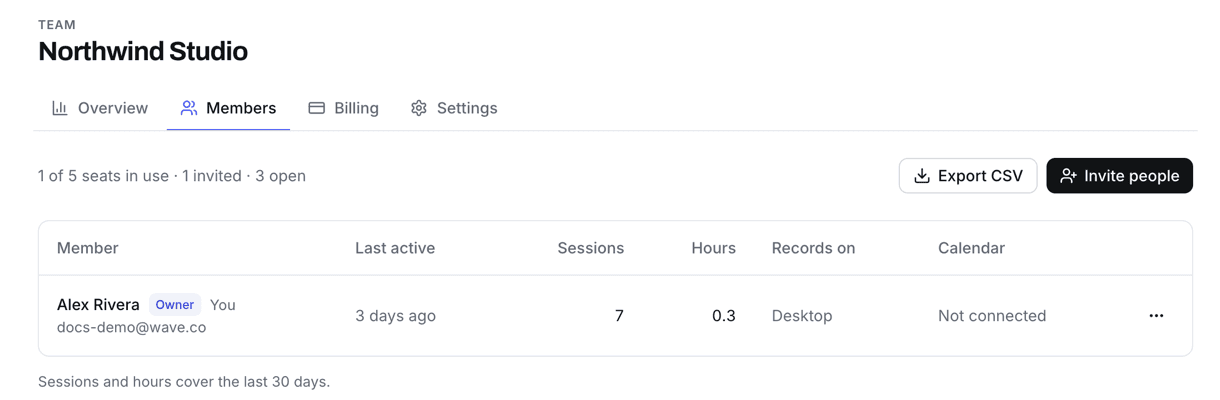
- Members shows each member's last active date, sessions and hours in the last 30 days, the devices they record on, and whether a calendar is connected. Export CSV downloads the list.
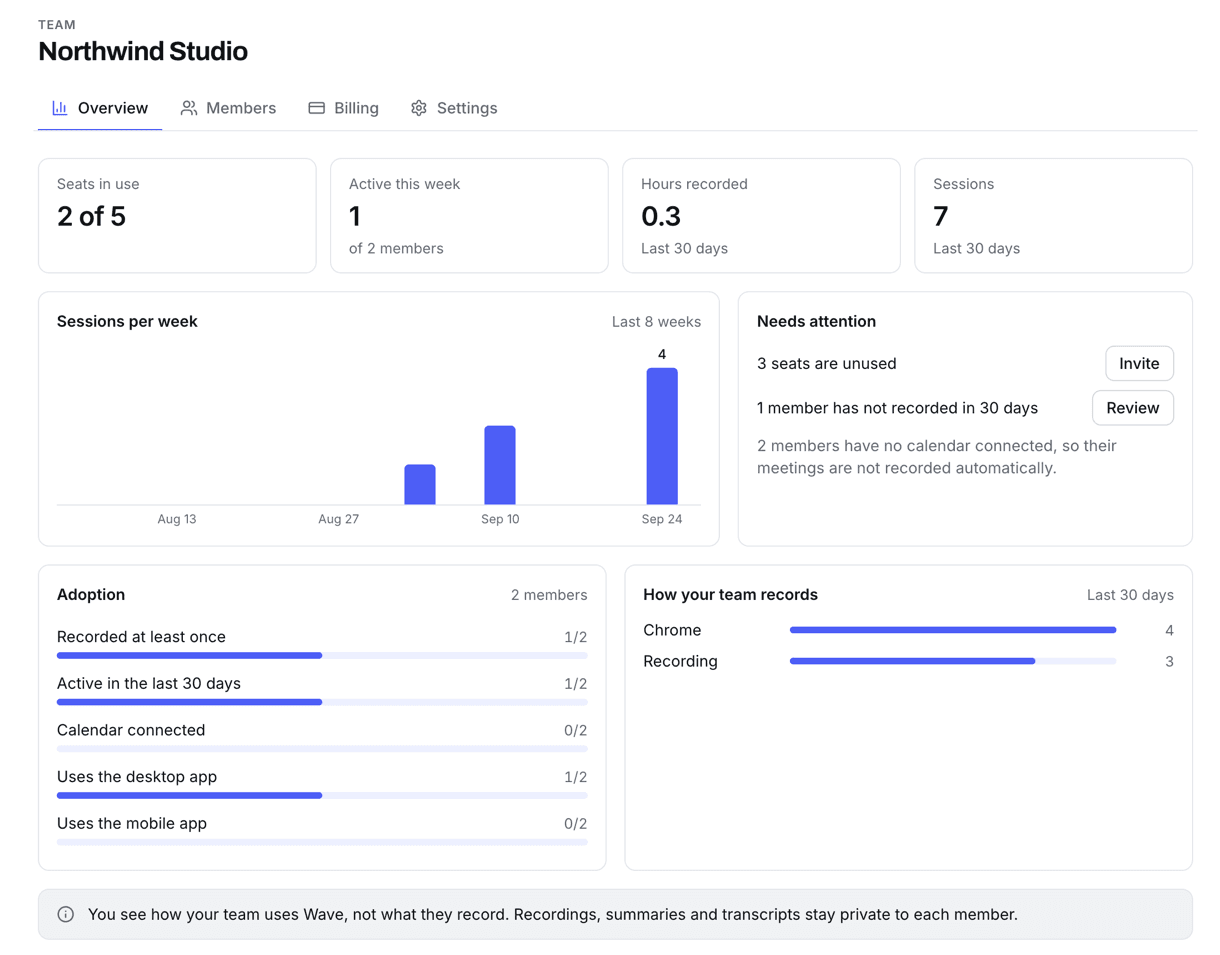
Admins see how the team uses Wave, never what anyone records. Recordings, summaries, and transcripts stay private to each member. Nothing is shared with the admin or the team automatically.
Managing members and admins
On Members, open the actions menu next to a person:
- Make admin lets them manage the team with you, and Remove admin role undoes it. The owner is always an admin. Admin and seat are separate, so an admin doesn't have to use a seat.
- Remove from team makes their seat available for someone else. The person keeps their Wave account and all their recordings, and moves to the free plan unless they pay for Wave themselves.
Wave can't hand a departing member's library to an admin, so ask them to share or export anything the company needs before they go.
What members see
For a member, Your team shows their seat (active until the plan's end date), who the team admins are, and who else is on the team.
Billing and settings
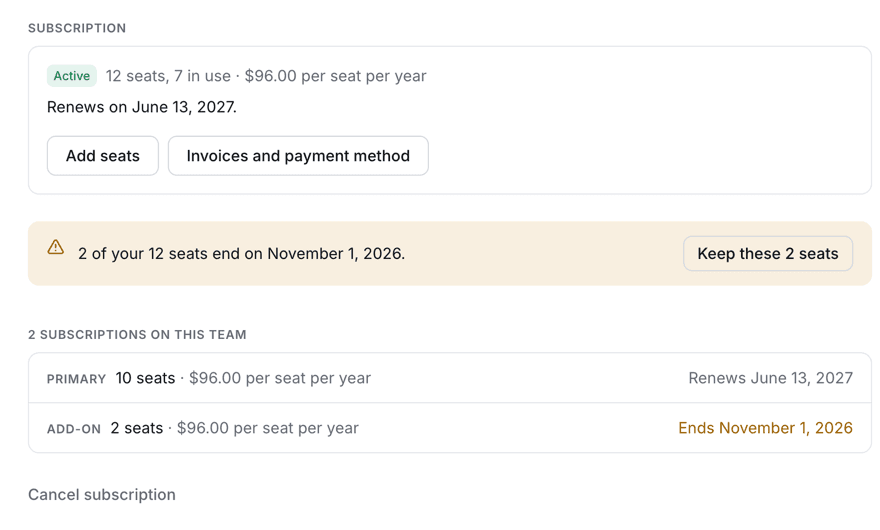
Billing shows your plan and renewal date, with these actions:
- Add seats: choose a number and pay through Stripe checkout at the per-seat price your new total qualifies for. The new seats are ready to assign right after checkout, and they're billed as their own annual subscription from the day you add them.
- Invoices and payment method: opens the Stripe billing portal to change the card on file or download invoices.
In the console, Settings has the Team name, shown to members and in invite emails, and the Weekly team summary, an email for admins that you can turn off. To change the billing email, write to support@wave.co.
Renewals and failed payments
The subscription renews automatically each year and every seat renews with it, so nobody has to join again. If the renewal charge fails, you get an email with the subject "Your Wave for Teams renewal needs attention", Billing shows Payment failed, and your team keeps full access while Stripe retries over the next few days. Click Update payment method to fix the card before the retries run out.
Cancelling and restarting
Click Cancel subscription, then Yes, cancel. Your team keeps full access until the end of the paid period, the status changes to Ending soon, and nothing more is charged. Change your mind before then with Keep my subscription.
When a team subscription ends, every member drops back to the free tier and unused keys are retired. No recordings are deleted. You'll get an email with the subject "Your Wave for Teams subscription has ended", and Restart subscription on Billing starts the plan again: members who still hold a seat get Pro back without re-entering a key.
FAQ
No. Admins see how much each person uses Wave, and nobody but you can open your recordings, summaries, or transcripts unless you share them.
Only admins get the console. Ask the owner or another admin to make you an admin. If the buyer has left the company, contact us and we'll move the billing email to you.
They can still join and the team seat takes over, but their personal subscription doesn't stop on its own. Have them cancel it (see managing your subscription). If they were paying on the web, contact us and we'll sort out the overlap.
Not while the subscription is active. An unused key stays valid, and a redeemed seat runs to the end of the current period and then renews with the subscription. Keys are only retired when the subscription that paid for them ends.
View invoice on the confirmation page, or Invoices and payment method on Billing for every invoice on the account.
Was this article helpful?
Still need help?