Getting Started with the Wave Web App
A tour of app.wave.co — the dashboard, the session sidebar, what's inside a session, and every settings tab.
The Wave web app at app.wave.co is the full product in a browser — your whole library, every AI feature, and all your settings, with nothing to install. This is the lay of the land; for recording in the browser specifically, see Wave for Web.
Sign in
Choose Log in with Google, Log in with Apple, or Log in with Microsoft — the same provider you use in the phone or desktop app. A Last used badge marks the method you picked last time on this browser. If you sign in with a different provider that shares your email address, Wave links it to your existing account rather than starting a fresh one. See using Wave on multiple devices.
Home
After signing in you land on Home: a greeting, an Ask anything about your sessions... box, a prompt to connect your calendar if you haven't, your Latest session with its key points, and a list of Earlier sessions.
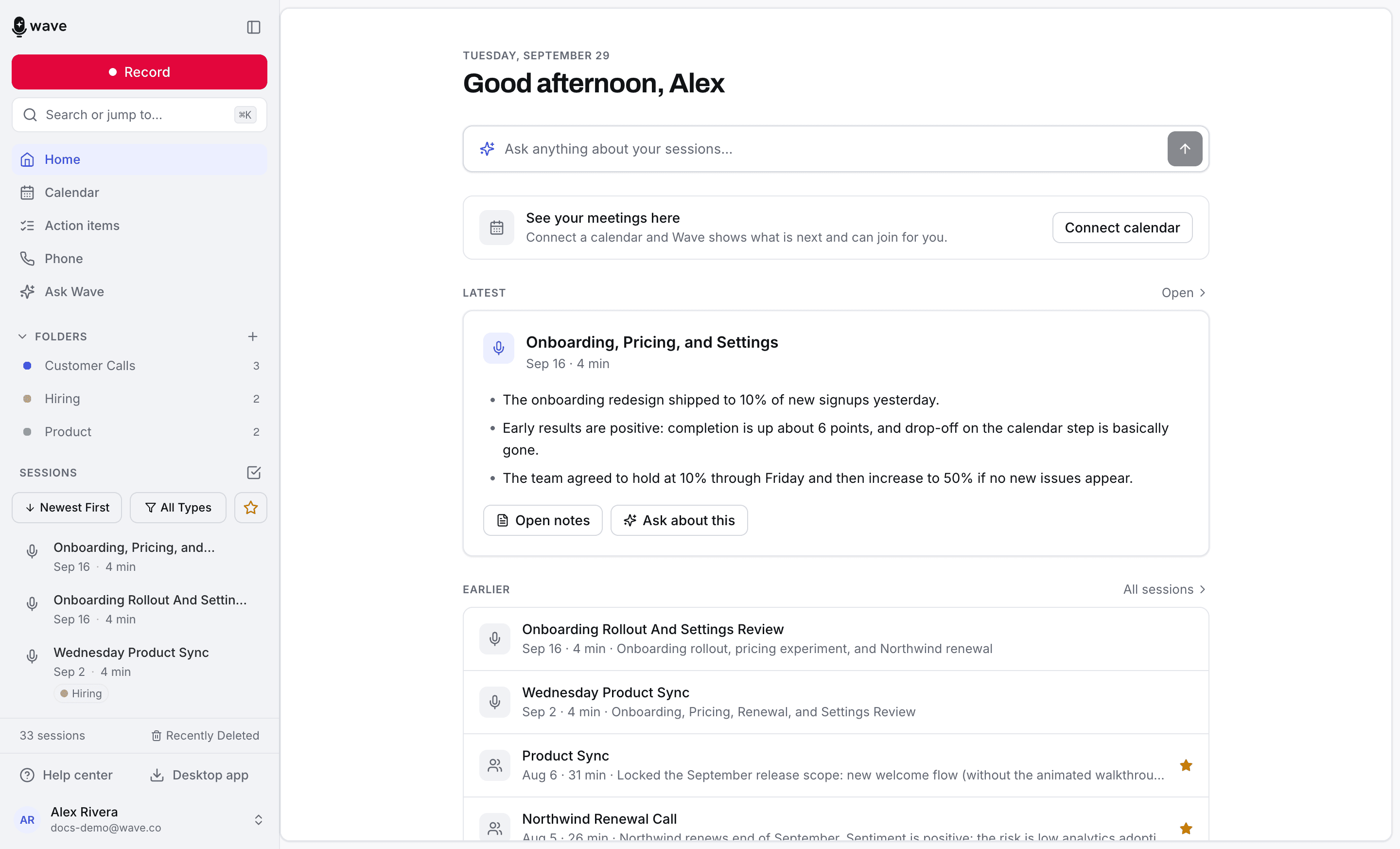
The sidebar on the left holds everything else: Record, the Search or jump to… box, Home, Calendar, Action items, Phone, Ask Wave, your Folders, and your session list. Help center and Desktop app sit at the bottom. Click your name at the very bottom for Settings, the theme (Light, Dark, Match system), and Sign out.
Finding a session
- Search — click Search or jump to… or press ⌘K (Ctrl+K on Windows). Wave matches on meaning as well as words, so "the conversation about the budget" finds the right session even if nobody said "budget". The same box jumps to folders and pages. See searching your Waves.
- Sort — Newest First, Oldest First, Longest First, Shortest First, A to Z, or Z to A.
- Filter by type — All Types by default, or narrow to meetings, meeting-bot recordings, recordings, phone calls, imports, YouTube, podcasts, desktop, Apple Watch, Chrome, and more.
- Show favorites only — the star toggle.
- Multi-select — the checkbox icon next to Sessions turns on selection mode so you can act on several sessions at once. See bulk actions.
Adding something new
Click Record at the top of the sidebar to open New session. It has three modes:
- Record — from your computer's microphone, up to 3 hours per session. Pick the microphone, language, and summary style first. See Wave for Web.
- Import — audio, video, or PDF files, or a YouTube link. See importing audio files and importing YouTube videos.
- Invite Wave — send a bot into a Zoom, Google Meet, or Microsoft Teams call. See record any meeting by link.
Inside a session
Open a session and you get tabs for Summary, Transcript, Action items, and Notes — plus Photos when the session has images. Ask Wave opens a chat about the session beside it. Click the title to rename it, click the date to change when it happened, and use the arrows at the top left to step to the previous or next session.
Share covers inviting people, the public link, copying the summary or transcript, PDF and Word downloads, emailing it to yourself, and sending it to a connected app. The ⋯ menu holds Move to folder, Customize summary, Trim or split, Download audio, and Delete session — deleted sessions go to Recently Deleted, where they stay for 30 days before they're removed for good.
Settings
Open Settings from the menu under your name. The sections are:
| Section | What's there |
|---|---|
| Account | Display name, contact email, verified phone, linked accounts, alternative emails, and team account |
| Plan & billing | Your plan, minutes used, renewal date, and who bills you — see managing your subscription |
| General | Appearance and app language |
| Transcription | Default recording language, custom vocabulary, and voice profiles for Voice ID |
| Notes & titles | Title format — how Wave names new recordings |
| Sharing | Auto-share completed sessions to email, Notion, Google Docs, OneNote, or Evernote — see auto-share |
| Calendar & meeting bot | Opens the Calendar page and its Calendar settings — see connecting your calendar |
| Integrations | Connect or disconnect Notion, OneNote, Evernote, and Zoom |
| Developers | The Wave Developer API, MCP, Zapier, and webhooks |
| Privacy & data | Audio retention, Recently deleted, and delete account |
Your login email can't be changed, and it's separate from Contact Email — the address Wave sends summaries and notifications to.
Where to go next
- Connect your calendar so your recordings pick up meeting titles and speaker names — and Wave can join meetings for you.
- Wave Assistant chats across everything you've ever recorded.
- Action items in Wave rolls every follow-up into one list.
- Wave plans and pricing covers what the free plan includes.
Was this article helpful?
Still need help?